The Documents tab on Attio records
The Documents tab shows every document DocuPotion has created from a record, right on the record itself. It gives your team a running history of what was generated and sent, live e-signature status, and quick actions to view a file, chase a signer, or open the saved copy. This article explains what is on the tab and how to use it.
- Add the Documents tab to a record
- Recent activity
- All documents
- Open a document
- Send a signature reminder
- Troubleshooting
Add the Documents tab to a record
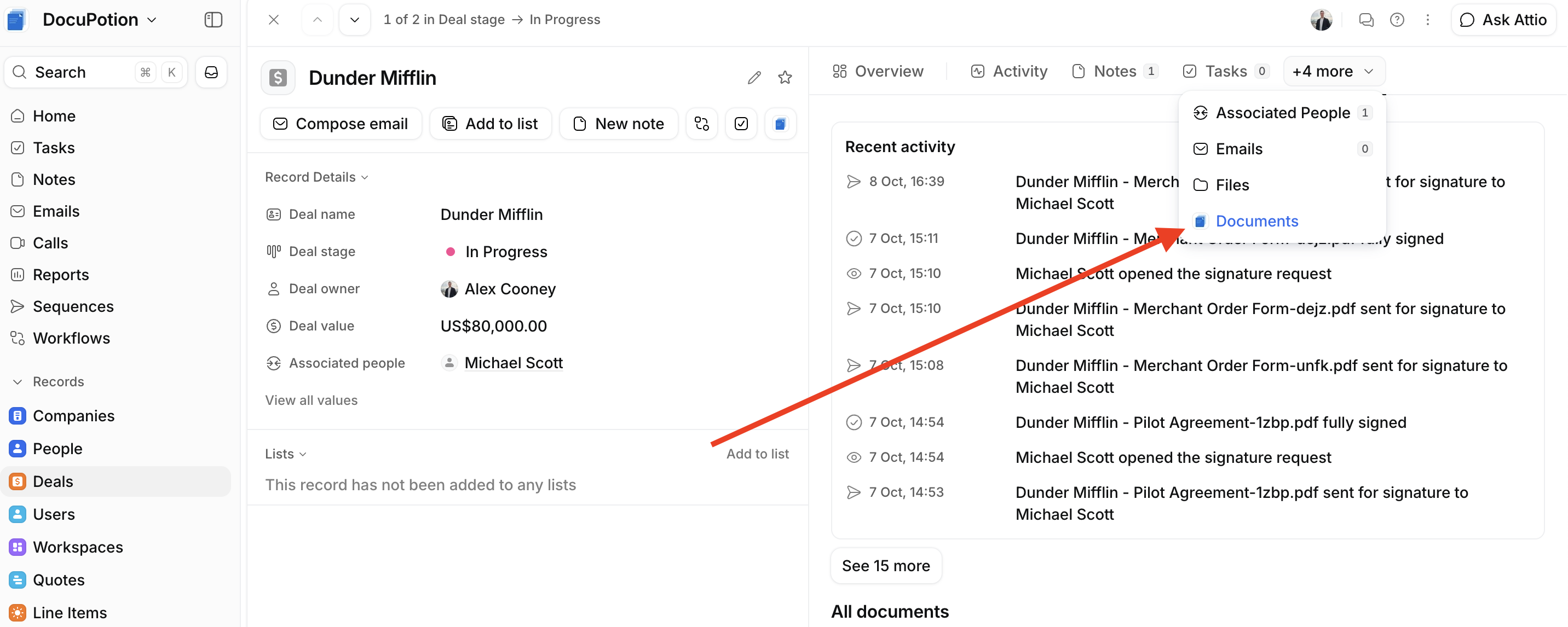
DocuPotion adds a Documents tab alongside the record's other tabs (Overview, Activity, Notes, and so on). It is available on every object, including custom objects.
If you do not see it, open the tab overflow menu (the + more dropdown at the end of the tab row) and choose Documents. To keep it visible for your whole team, pin it in the record's tab layout the same way you would any Attio tab.
The tab shows documents, it does not create them
To generate a new document, use the Create document action on the record (see the Attio quickstart guide). The Documents tab is where those documents then appear.
Recent activity
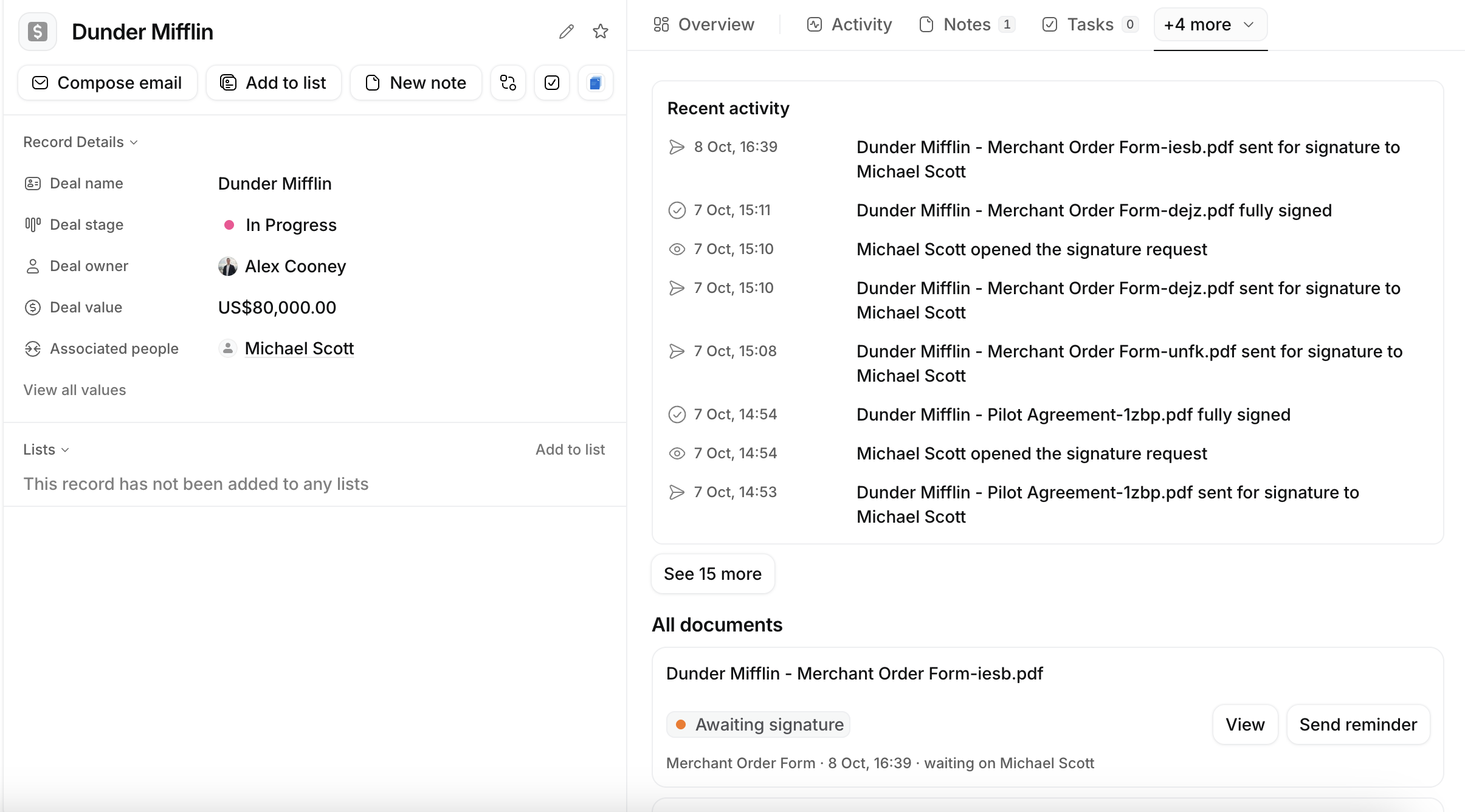
At the top of the tab, Recent activity is a timeline of everything that has happened to this record's documents, newest first. Entries include when a document was generated, sent for signature, opened by a signer, reminded, and fully signed. Each entry is time-stamped, so you can see the whole story of a document at a glance.
Only the most recent entries show at first. Click See more to reveal older activity.
All documents
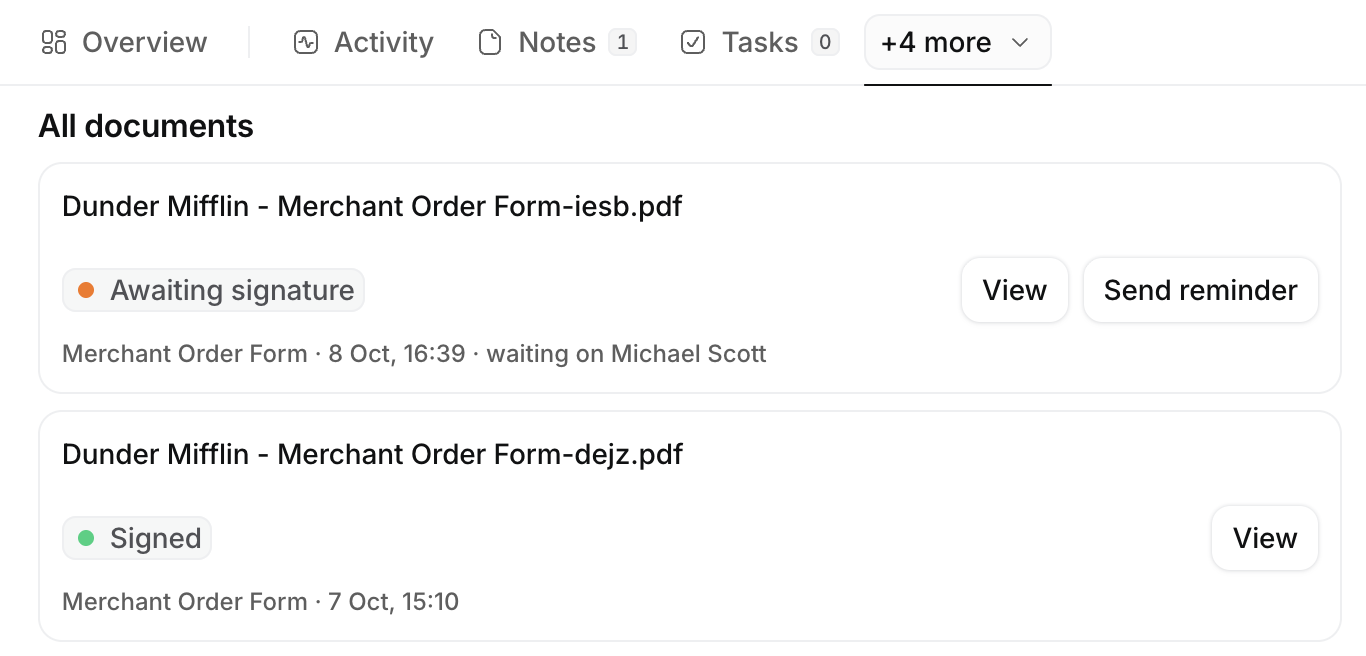
Below the timeline, All documents lists every document on the record as a card, most recent first. The five newest show first; click Show more to see the rest.
Each card shows:
- the file name;
- a status badge (see below);
- a line of detail: the automation that created it, when it was created, and, for a document awaiting signature, who it is waiting on;
- actions on the right: View, Send reminder (only while awaiting signature), and Open in Drive (when a copy was saved to Google Drive).
What the statuses mean
- Generating: the document is being created right now.
- Generated: the document was created and attached to the record. This status is used for documents that do not go out for signature.
- Awaiting signature: the document has been sent for e-signature and is waiting on one or more people. When there are several signers, the badge shows progress, for example "1 of 2 signed".
- Signed: everyone has signed. The sealed, signed copy is the one attached to the record.
- Declined: a signer declined the document.
- Not sent for signature: the document was generated and attached, but the signature request could not be sent (for example, a signer had no email address on the record). Fix the cause, then create the document again.
- Failed: the document could not be generated or sent. Open it, or check the automation in DocuPotion, to see what went wrong.
These are the same states as the record's Document status field (added when you set up an automation), so you can filter and report on them across Attio, not just read them here.
Open a document
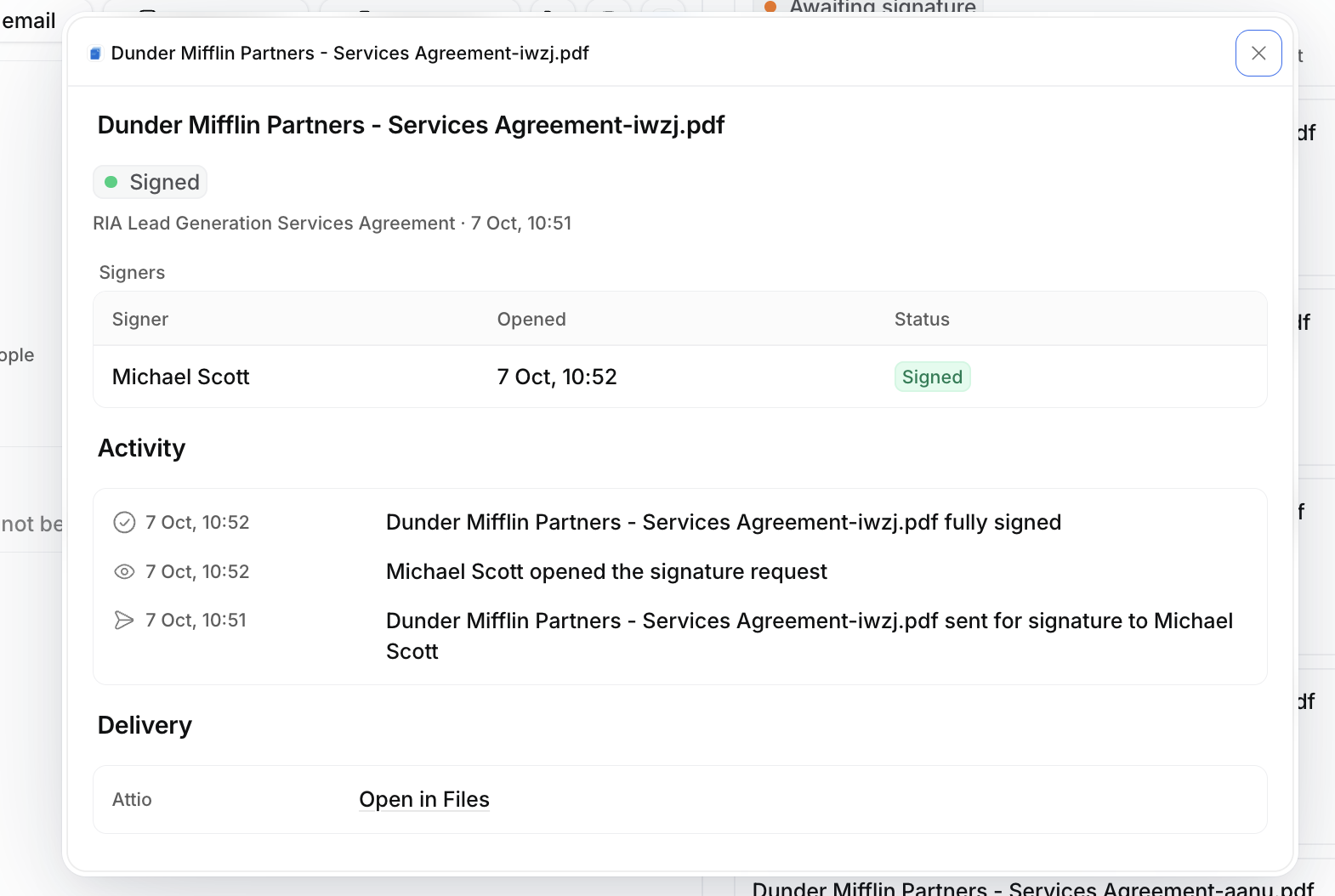
Click View on any card to open the document's details. This panel shows the document's status and, for e-signature documents, each signer with their own status and when they opened the request, plus a timeline for that single document.
From here you can also:
- Open in Files: jump to the record's Files tab, where the attached PDF lives. Once a document is signed, this is the sealed, signed copy.
- Open in Drive: open the copy saved to Google Drive, when the automation saves one.
Send a signature reminder
While a document is awaiting signature, its card has a Send reminder button. Clicking it re-sends the signing request by email to everyone on that document who has not signed yet. You can send one reminder per document every 24 hours; inside that window the button is disabled and shows when you can remind again.
For the full detail, including who gets reminded and how to remind from DocuPotion instead, see Send signature reminders.
Troubleshooting
- The tab says "Reconnect DocuPotion": the workspace's DocuPotion connection needs renewing. Open DocuPotion, go to Integrations, reconnect, then reopen the tab.
- A document is missing: the tab shows documents created by DocuPotion for this record. A PDF added to the record's Files by hand, or created from a different record, will not appear here.
- Open in Drive is not shown: that action only appears when the automation saves a copy to Google Drive. Documents are always attached to the record's Files regardless.
- The status looks out of date: reopen the tab to refresh. E-signature status updates as signers act, so a quick refresh will pull the latest.
See also: Collect e-signatures from Attio records and the Attio quickstart guide. Questions? Contact support@docupotion.com.