Quickstart (n8n) - Creating a document in an n8n workflow
Here's how to create PDF documents in an n8n workflow with DocuPotion.
- Register for a DocuPotion account
- Install the DocuPotion community node and add credentials
- Design your document
- Trigger document generation in your n8n workflow
Register for a DocuPotion account
Estimated time: 1 minute
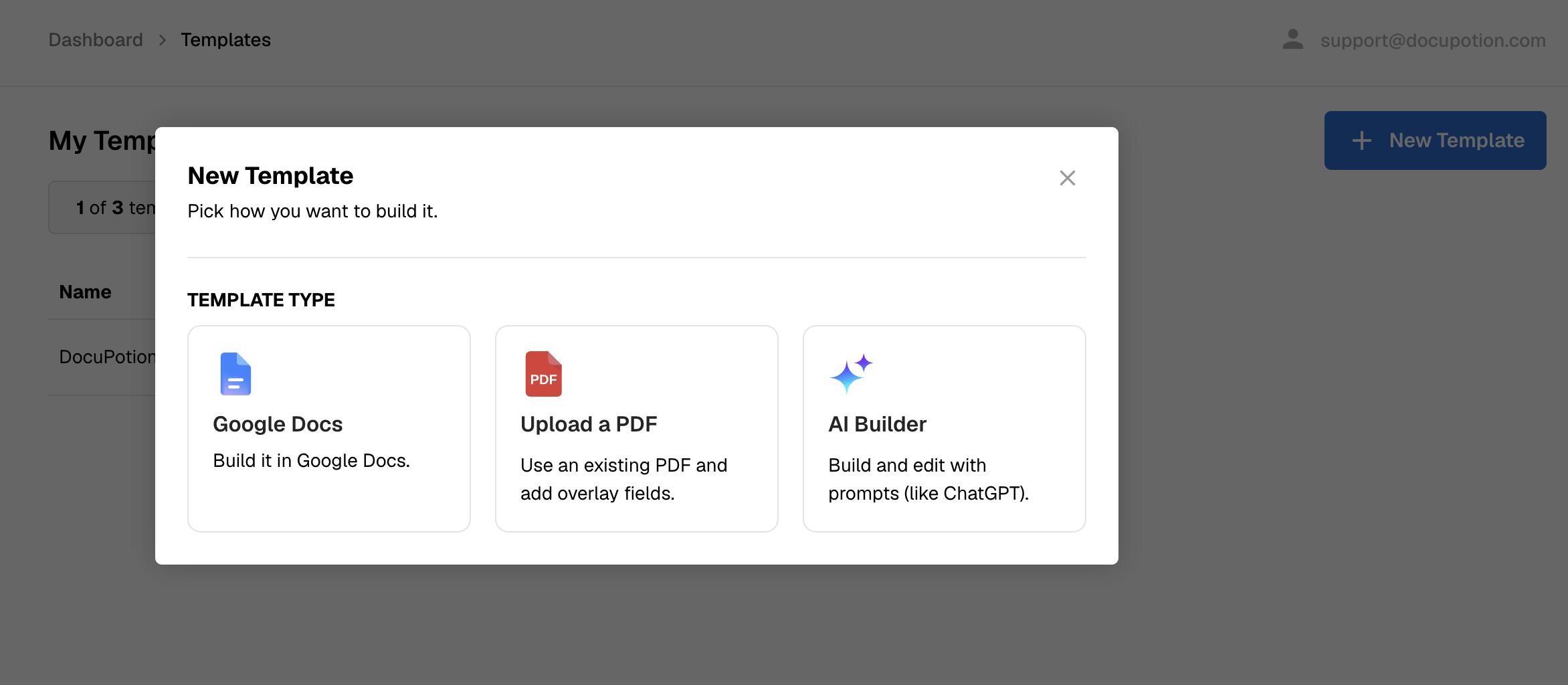
Head to the DocuPotion homepage and click on the 'Register / Sign in' or 'Start Free Trial' button.

This will bring you to the 'Register' page where you can register for an account. Choose n8n and the onboarding wizard will route you straight into the document to create your first template
Install the DocuPotion node and add credentials
Estimated time: 2 minute
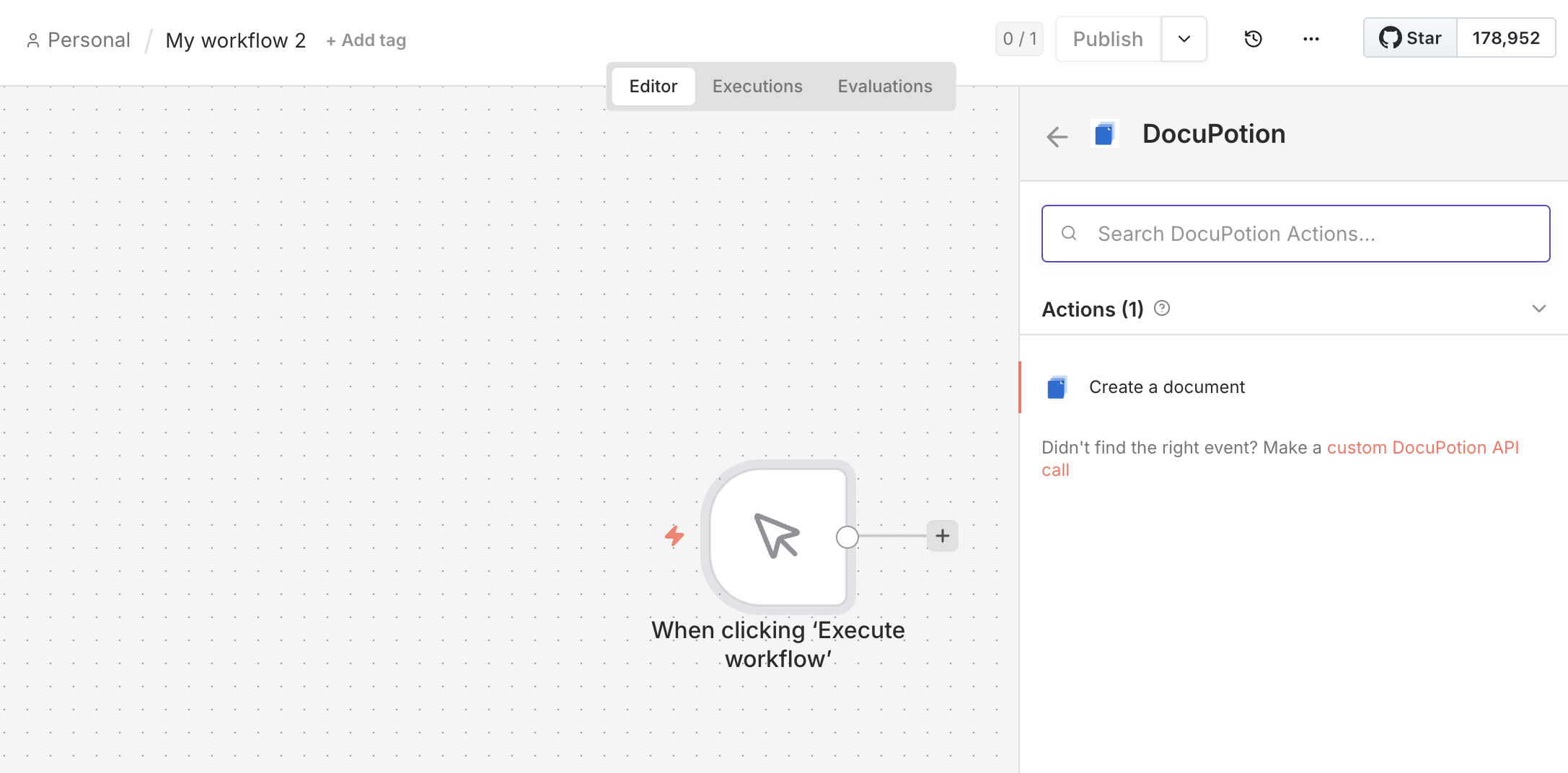
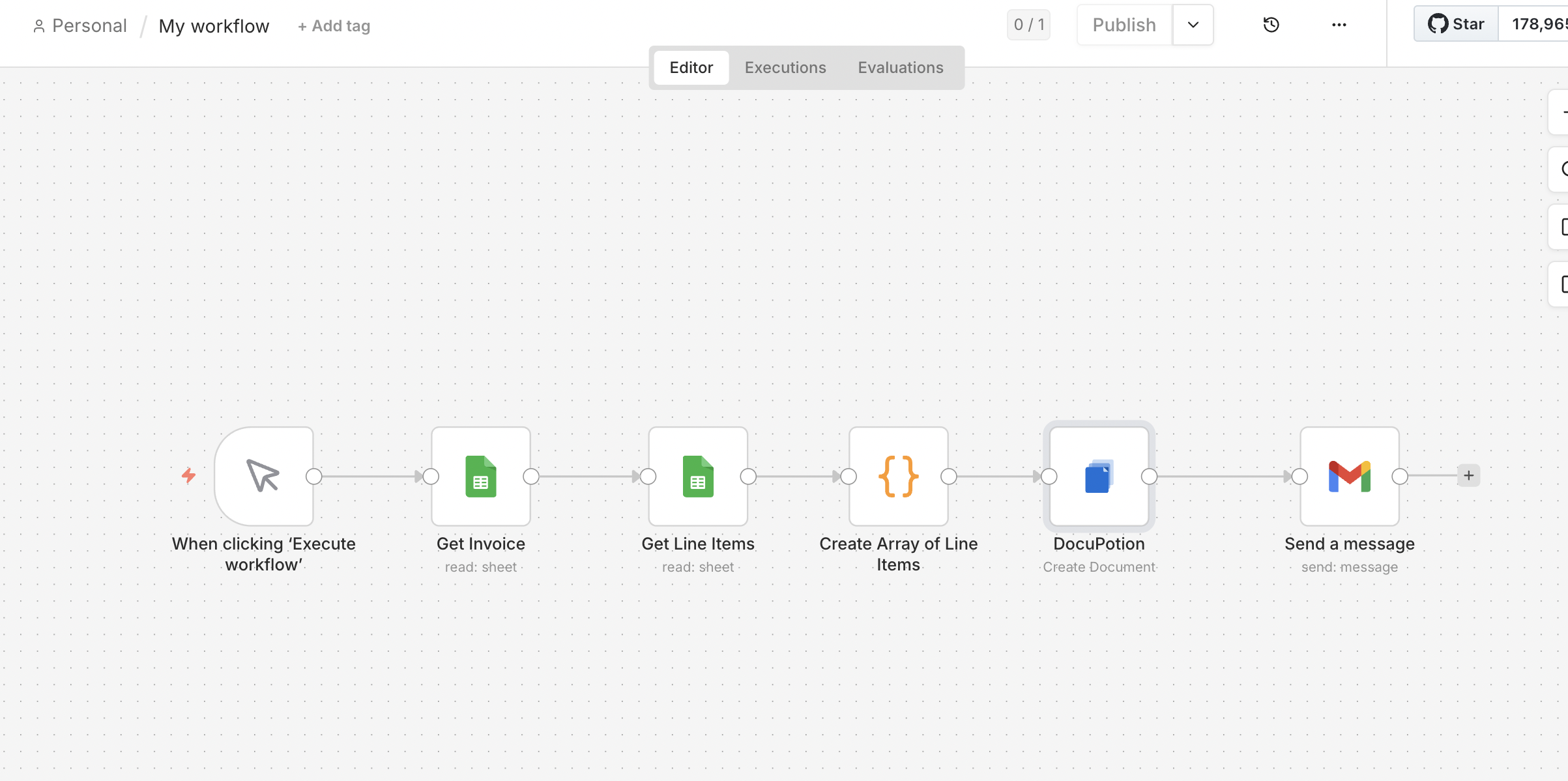
In any n8n workflow, search for the DocuPotion community node from the canvas and drop the Create a document action in.
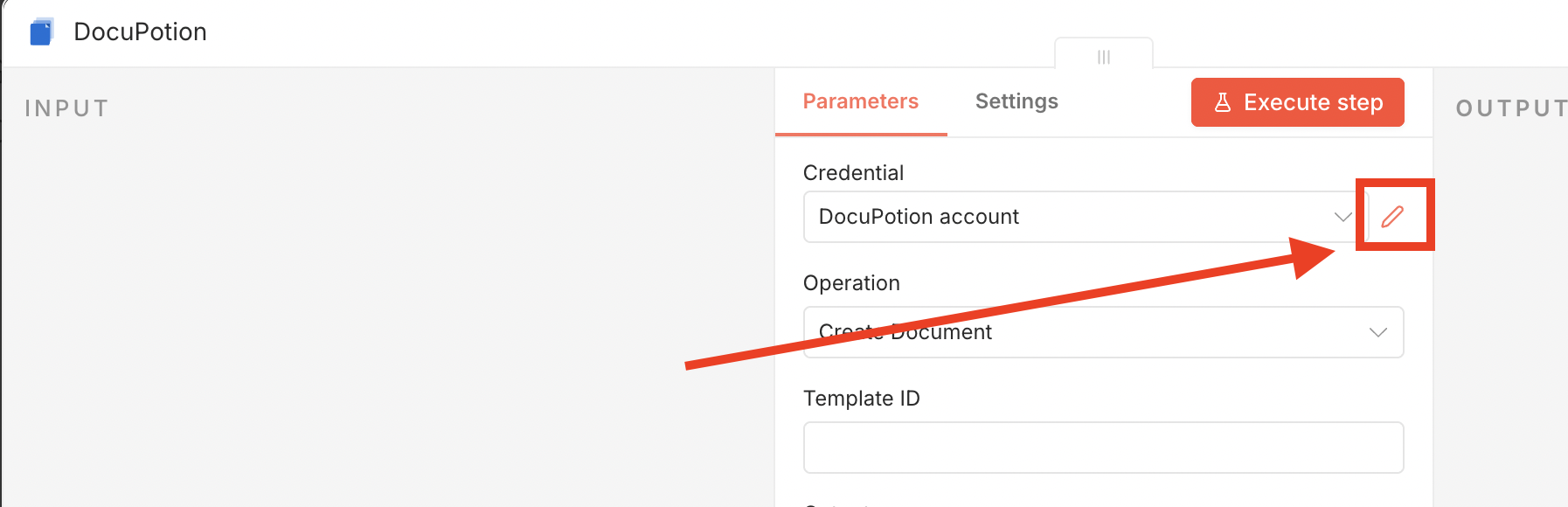
Click the pencil icon next to the Credential input to add your DocuPotion API key.
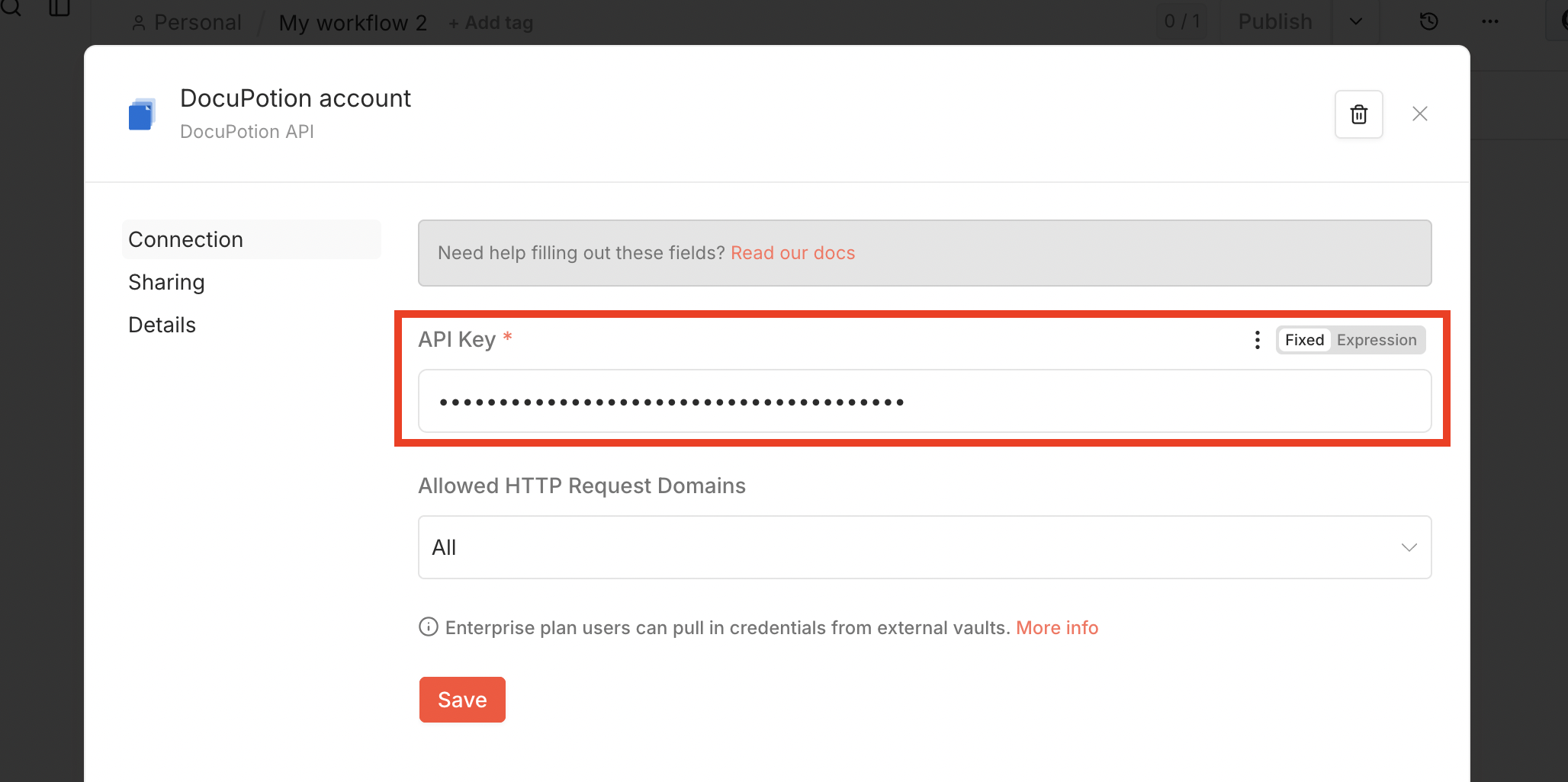
Get your DocuPotion API Key from the API Integration tab of your DocuPotion dashboard (link here) and paste it into the API Key input.
Design your document
Estimated time: 1-20 minutes (depends on how complex your PDF document is)
DocuPotion's Document Editor is a prompt-driven template builder: you describe the document you want in plain English and the editor generates the underlying HTML, CSS, and data schema for you. No drag-and-drop, no HTML knowledge required.
1. Describe your document
In the chat pane on the left, type what you're trying to create. Be as specific or as loose as you like — the model is happy with both. Examples:
- "A simple invoice for my freelance business with line items and payment terms."
- "A 2-page sales proposal for a SaaS product. Include a summary, three pricing tiers, and a signature block."
- "A one-page certificate of completion with the student's name, course title, and issue date."
Hit send. The editor will draft the full template — layout, typography, merge fields, and sample data — and render it live in the preview pane on the right.
2. Upload reference images to embed
Above the prompt box, drag in logos, headers, product shots, or any image you want to appear in the document using the Upload Images rail. Each image gets an auto-assigned handle like @img1, @img2. You can attach up to eight images at a time.
Reference a handle in your prompt to tell the editor where to place it — e.g. "Use @img1 as the company logo in the header" or "Add @img2 as a hero image at the top of the first page". The image gets inserted into the template at the spot you describe.
Tip: Uploaded images stay attached across the whole session and reload with the template, so you can iterate without having to re-upload your logo each turn.
3. Iterate by chatting
Keep refining the template with follow-up prompts. The editor remembers the conversation, so you can say things like:
- "Make the header more compact and move the logo to the right."
- "Add a discount row below the subtotal."
- "Change the font to something more playful."
Simple edits are applied surgically and come back in a few seconds. Bigger redesigns take a little longer because the editor regenerates the template from scratch.
4. Set up your merge fields
Anywhere you want dynamic data, the editor will insert a {{mustache}} variable — e.g. {{company_name}} , {{invoice_number}} , {{total}} . You can see and edit these in the Data tab at the top of the preview.
If you already know what data your n8n workflow will send, include that list in your prompt up front — e.g. "Use these fields: first_name, last_name, email, amount_due, due_date". The editor will bind them exactly and won't invent extras.
5. Preview with real-looking data
Toggle With data above the preview to render the template with the sample values from the Data tab. This is what your final PDF will look like when n8n sends real values in.
6. Publish the template
When you're happy with the draft, click Publish in the top-right. Only published versions are used when n8n generates a PDF, so you can keep tweaking the draft without affecting live workflows.
Heads up: Your n8n workflow references the template by its Template ID (shown next to the template name at the top of the editor). That ID never changes, so you can republish updates without touching your n8n node.
Trigger document generation in your n8n workflow
Back in n8n, configure the Create a document action on your DocuPotion node.
Fields in the Create Document action
- Template ID - The ID shown next to the template name at the top-right of the Vibe Editor. Copy–paste it here
- Output - Pick one: File (recommended — hands n8n a binary file you can email, upload, etc.), URL (returns a signed link), or base64 (returns the raw encoded string)
- File Name - The filename for the generated PDF, e.g.
invoice-{{invoice_number}}.pdf. Supports n8n expressions. - Template Data - Add your template data as a JSON object. This is the data that will replace the
{{merge fields}}in your template.
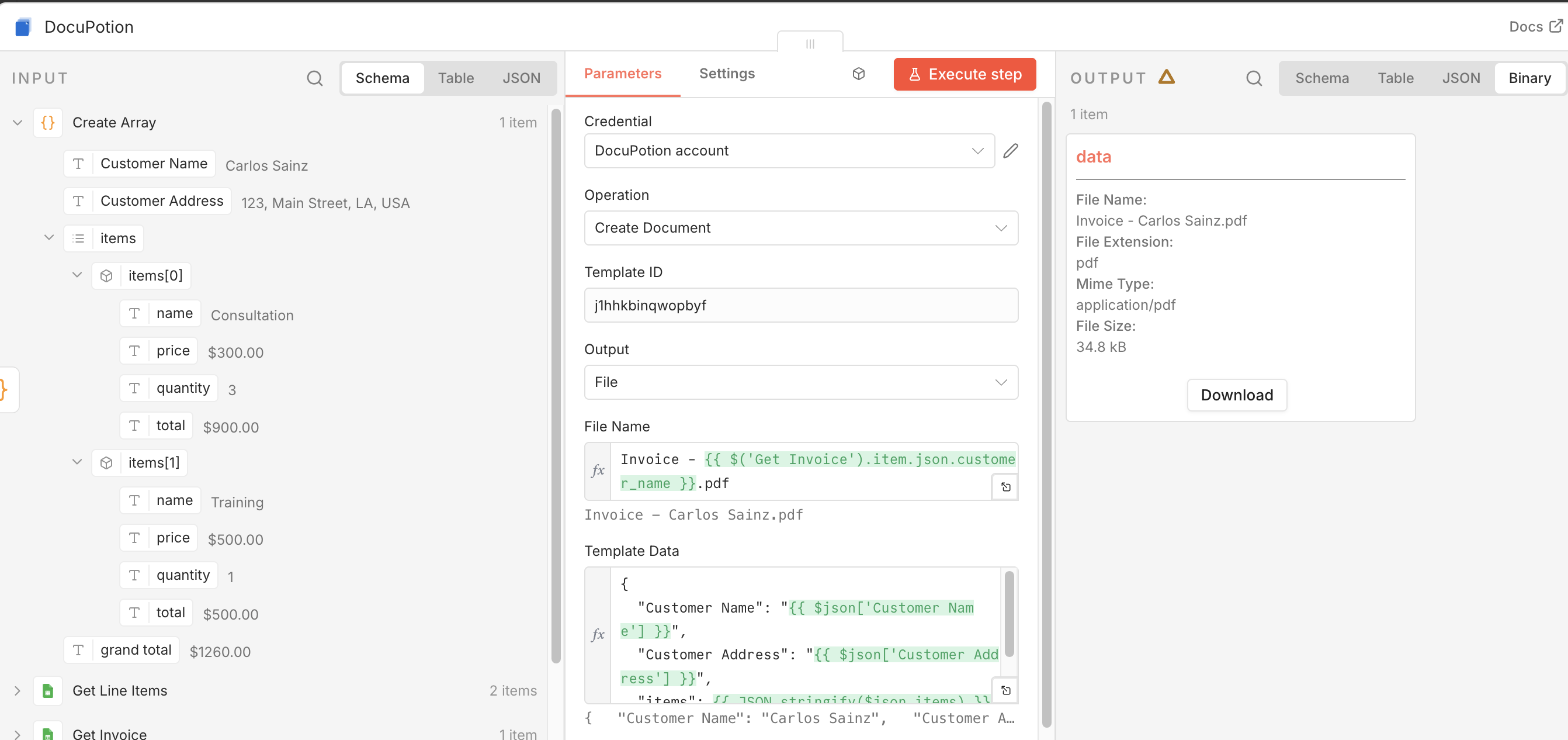
Tip: You can get the structure of the JSON required for Template Data in the Data section of the template editor. You can then replace the values with output from previous steps in your n8n workflow.
Run the workflow. The node returns the generated PDF in whichever output format you picked. Pipe it straight into an email node, a Drive upload, a webhook, or anywhere else n8n can reach.