Creating documents from a spreadsheet
DocuPotion allows you to generate a batch of PDFs in a single run. You can generate one document per row of a spreadsheet.
Steps
- Create a reusable template
- Upload a spreadsheet (.csv or .xlsx)
- Map merge fields to columns in your spreadsheet
- Delivery: name your files (and optionally email them)
- Review and generate
- Download your documents
Create a reusable template with merge fields
Navigate to the Templates section of your DocuPotion dashboard and click on the New Template button. You'll have 3 options for creating a new template:
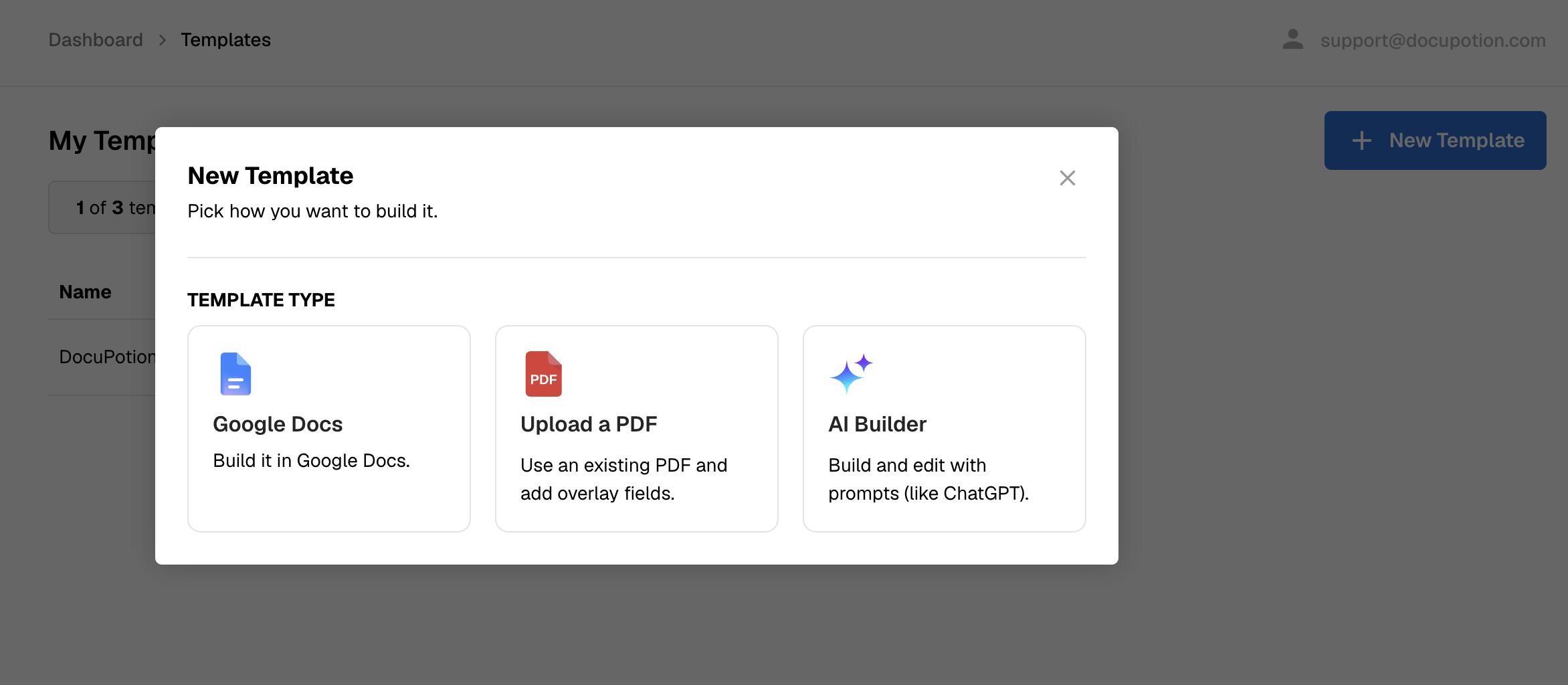
Google Docs: Connect to your Google Drive and pick an existing Doc template or start from scratch. See this doc for full instructions.
Upload a PDF: Choose this option if you have an existing PDF and you want to add overlay fields that you can merge your data to. Fillable PDFs with form fields also accepted. See this doc for full instructions.
AI Builder: Create a template based on a prompt or choose one of our HTML library templates. You can also attach existing PDF or HTML files for reference. See this doc for full instructions.
Upload a spreadsheet (.csv or .xlsx)
In the Generate tab, add your spreadsheet to the dropzone area:

Your spreadsheet should have:
- A header row as the first row (the column names).
- One row per document you want to create.
- Up to 5,000 rows and 20 MB per file. For larger jobs, split the file into batches of 5,000 rows or fewer.
Map merge fields to columns in your spreadsheet
DocuPotion automatically matches your template's merge fields to spreadsheet columns by name. Review each match and adjust any that are wrong using the dropdowns. A sample value from the first row is shown so you can check you've picked the right column.

Every merge field must be matched to a column before you can continue. When they're all set, click Continue.
Delivery: name your files (and optionally email them)
On the Delivery step, choose how each generated PDF should be named. Type a file name pattern using your merge fields, for example:
{{full_legal_name}} - {{department}}
- Under Tap a column to add it, click a column chip to insert it — the first eight columns show, and + N more columns reveals the rest. You can also type
{{field_name}}yourself. - The Example file name line shows how a real file name will look, using your first row of data.
- Leave this blank to use default names (
row-00001.pdf,row-00002.pdf, and so on).

Every generated document is saved to this run for 12 months, ready to download.
Below the file name field you'll also find the Email each document option (paid plans): DocuPotion sends each PDF to its recipient as a personalised email attachment, using an email address column from your spreadsheet. See Emailing documents to recipients for a full guide.
Click Continue when you're happy.
Review and generate
Check the summary:
- Source: the file, the number of rows, and how many fields are mapped.
- Delivery: an example of the file names, where the documents are saved, and — if you turned email on — who each document will be emailed to.

When you're ready, click Generate [N] documents. The run screen shows live progress:
- A progress bar and the counts: Total rows, Generated, In queue and Failed.
- Each row's status — Rendered, Generating or Failed.

Download your documents
- View PDF next to any row opens that single document.
- Download all (.zip) downloads every document from the run in one file. The button prepares the zip first, then becomes clickable.

Tips
- Keep your header row tidy. Column names that closely match your merge field names get auto-mapped for you.
- One document per row. If you need 400 certificates, your spreadsheet has 400 data rows.
- Split very large files. Anything over 5,000 rows should be broken into multiple uploads.
- Nothing is charged for skipped or failed rows . Only for documents that are actually generated.