Generate PDF from an Airtable Automation
Once you've mapped your template fields to your Airtable data, you can start generating PDFs of your document using an Airtable Automation.
- Choose the 'Generate Automatically' option
- Add the automation script in Airtable
- Debugging errors with the automation
You can also generate PDFs of your template in Airtable using a Generation Link. See this doc for full details.
Choose the 'Generate Automatically' option
Once you've mapped your data, you'll be presented with two choices for triggering your PDF generation:
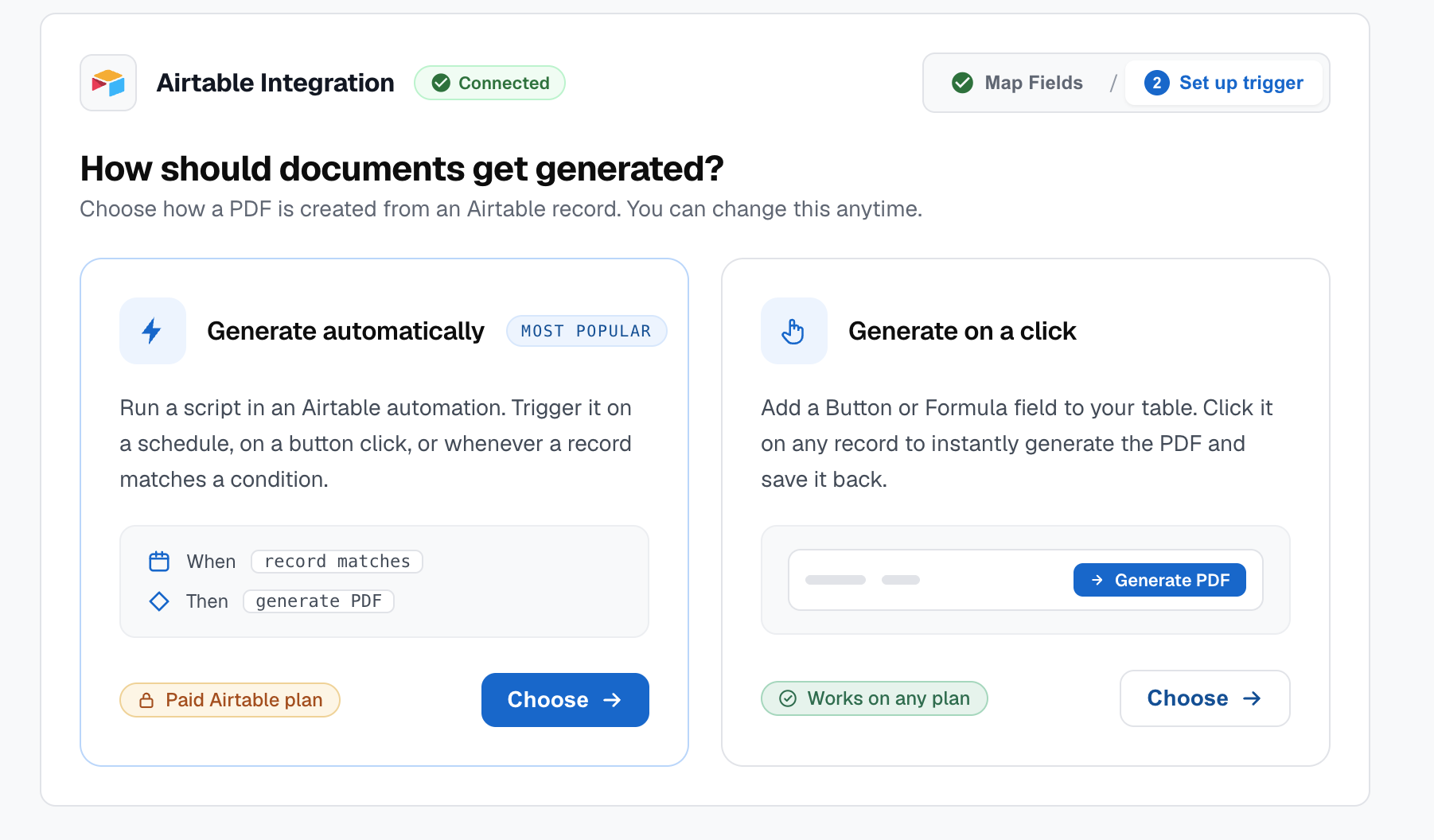
Choose the Generate automatically option. You'll see a code snippet that you can copy. This will be used in the next step.
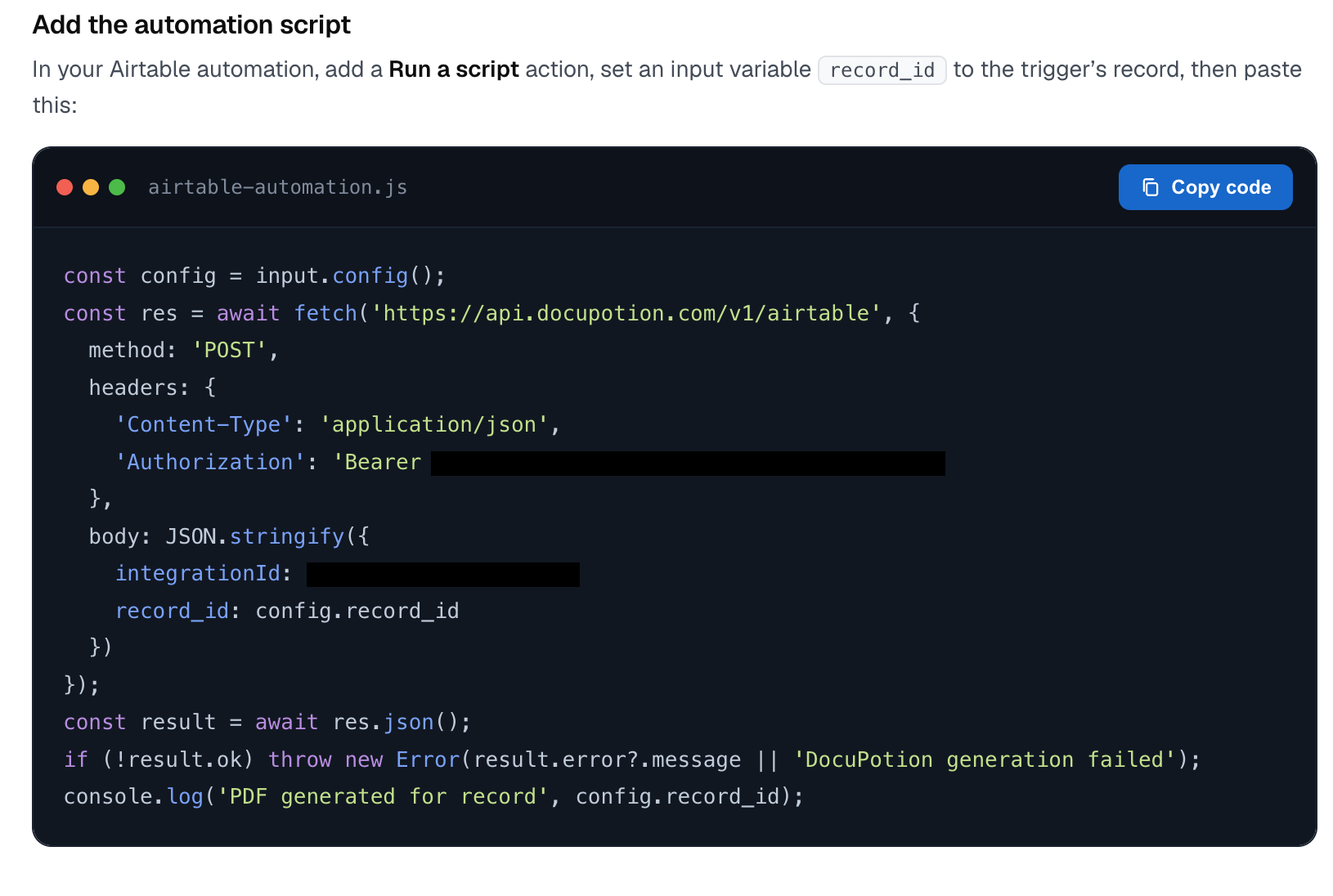
Add the automation script in Airtable
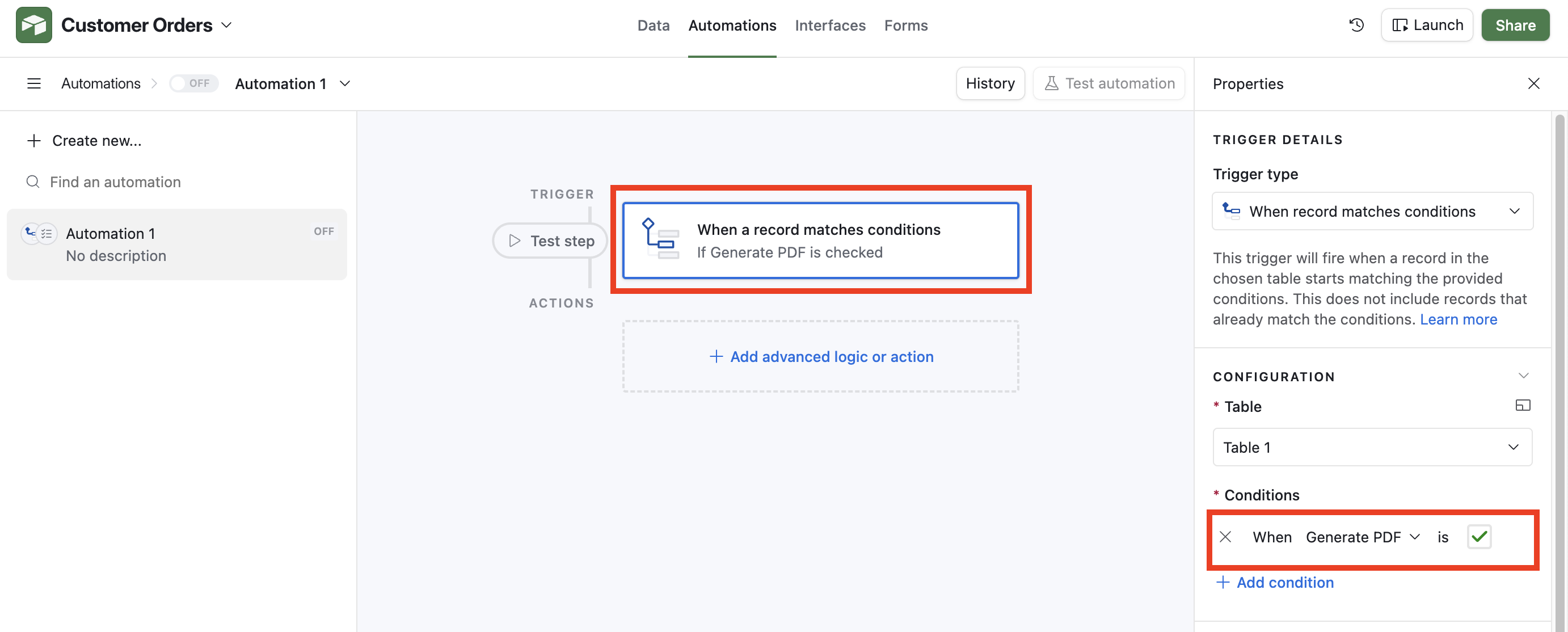
Navigate to the Automation tab in your Airtable dashboard and Add a Trigger. In the below example, we've added a Checkbox (called 'Generate PDF') to our Airtable table and are triggering the automation whenever a user checks the checkbox:
Next, add a 'Run a Script' action to the automation. You'll be brought to a editor. Paste in the Automation script your DocuPotion editor:
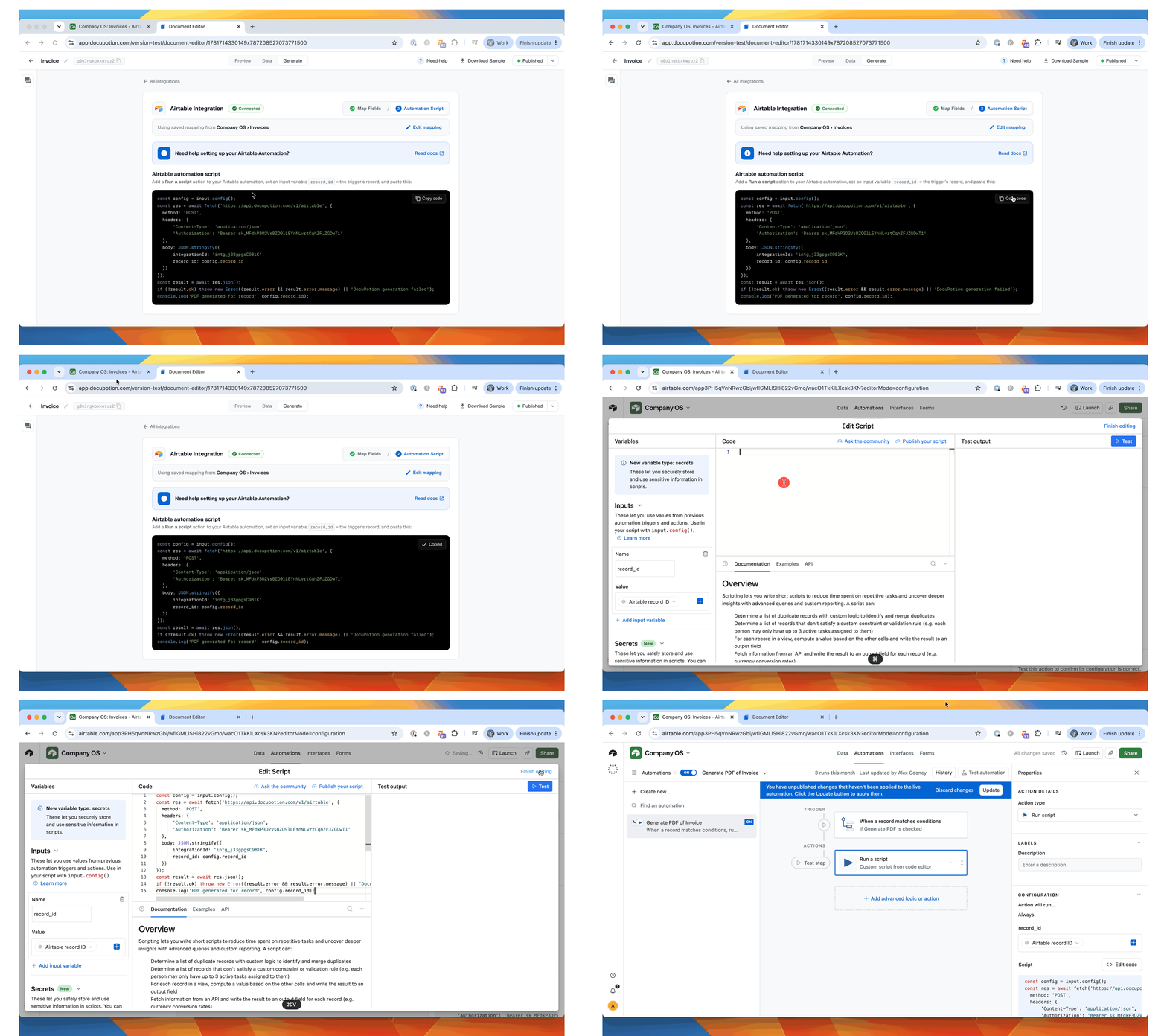
Add record_id as an input and use data from the Airtable record ID.
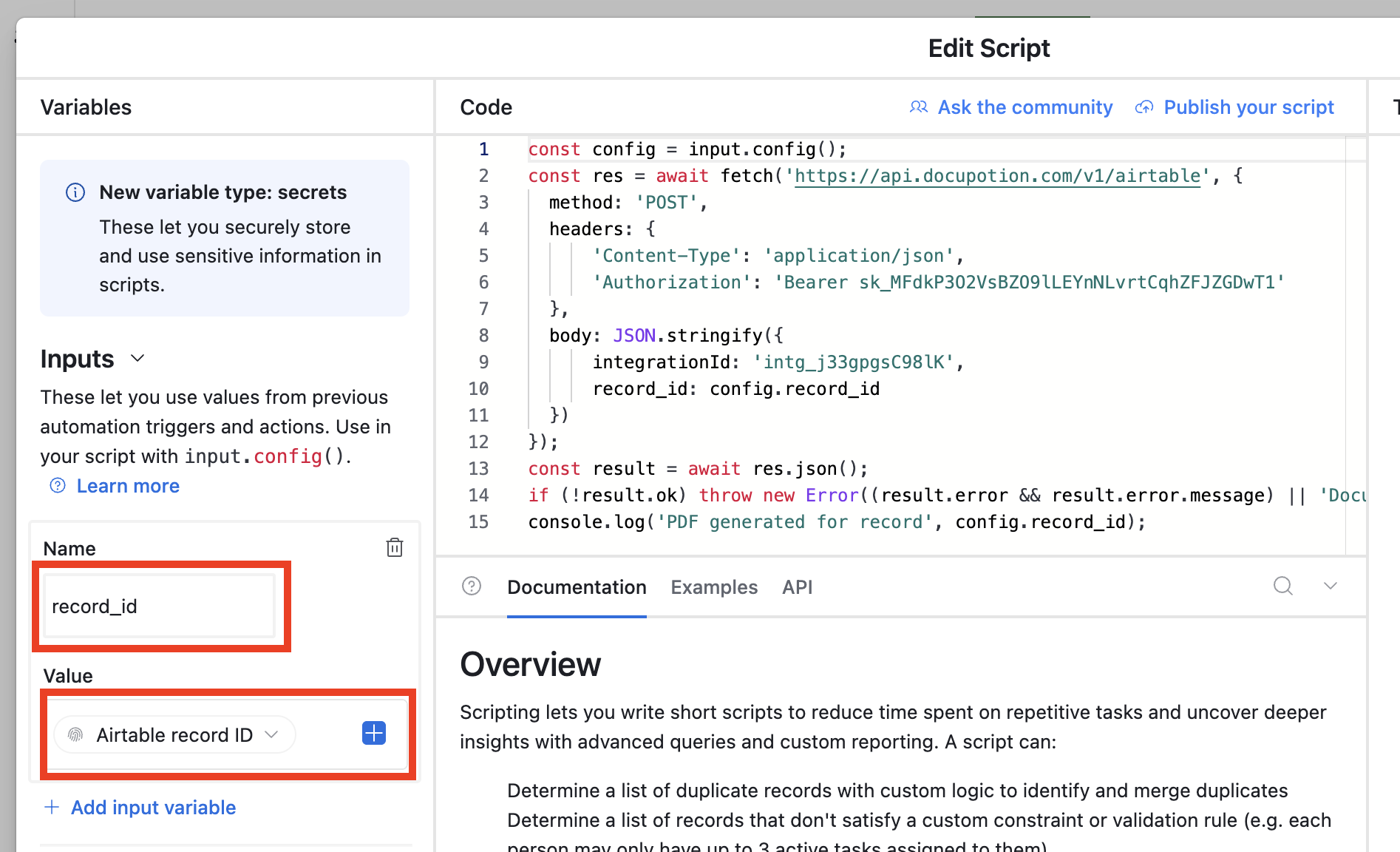
Please note that you must use the exact spelling record_id for the name of the Input.
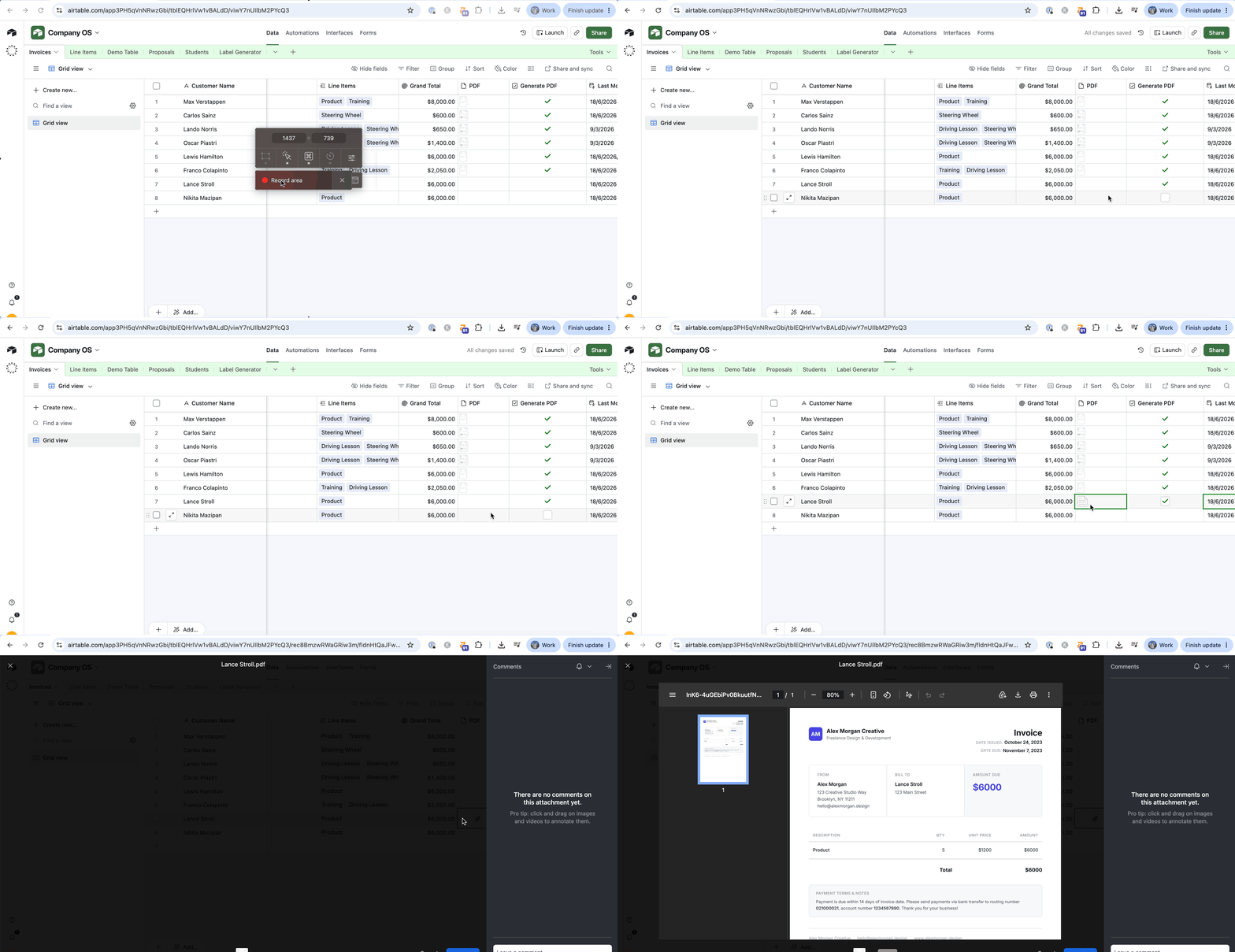
Save down your automation. Now whenever your automation is triggered, a PDF will be generated from your DocuPotion template with your Airtable data (it can take a few seconds for the PDF to generate). In the below example, we're running the automation whenever a user checks the Generate PDF checkbox.
Debugging errors with the Automation
If you're running the Automation but not getting any PDF returned, you can follow these steps to figure out the issue:
Navigate to the Automations tab and open up the Automation you're using to generate the PDF:
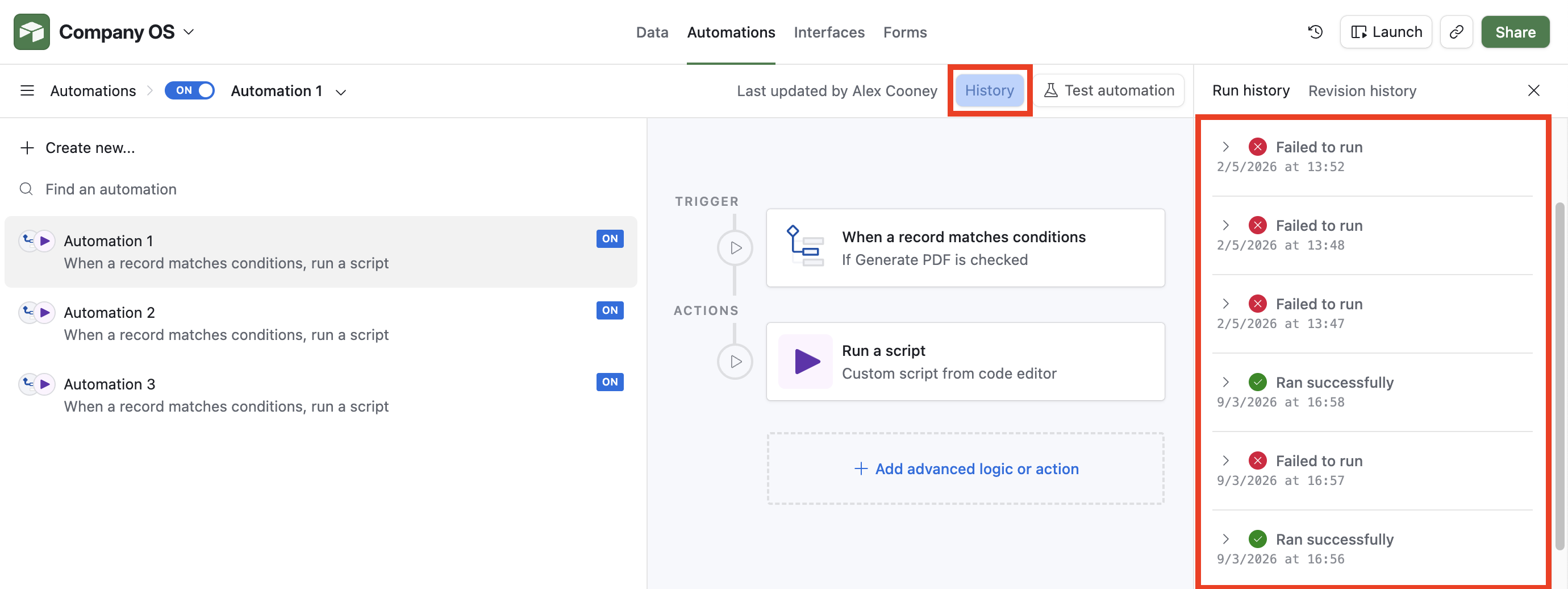
You'll likely see that you have an Automation that Failed to run. Click on one of the failed runs. It's usually the Run a Script section that causes the issue. Click into that and then on the Execution log -> View button:
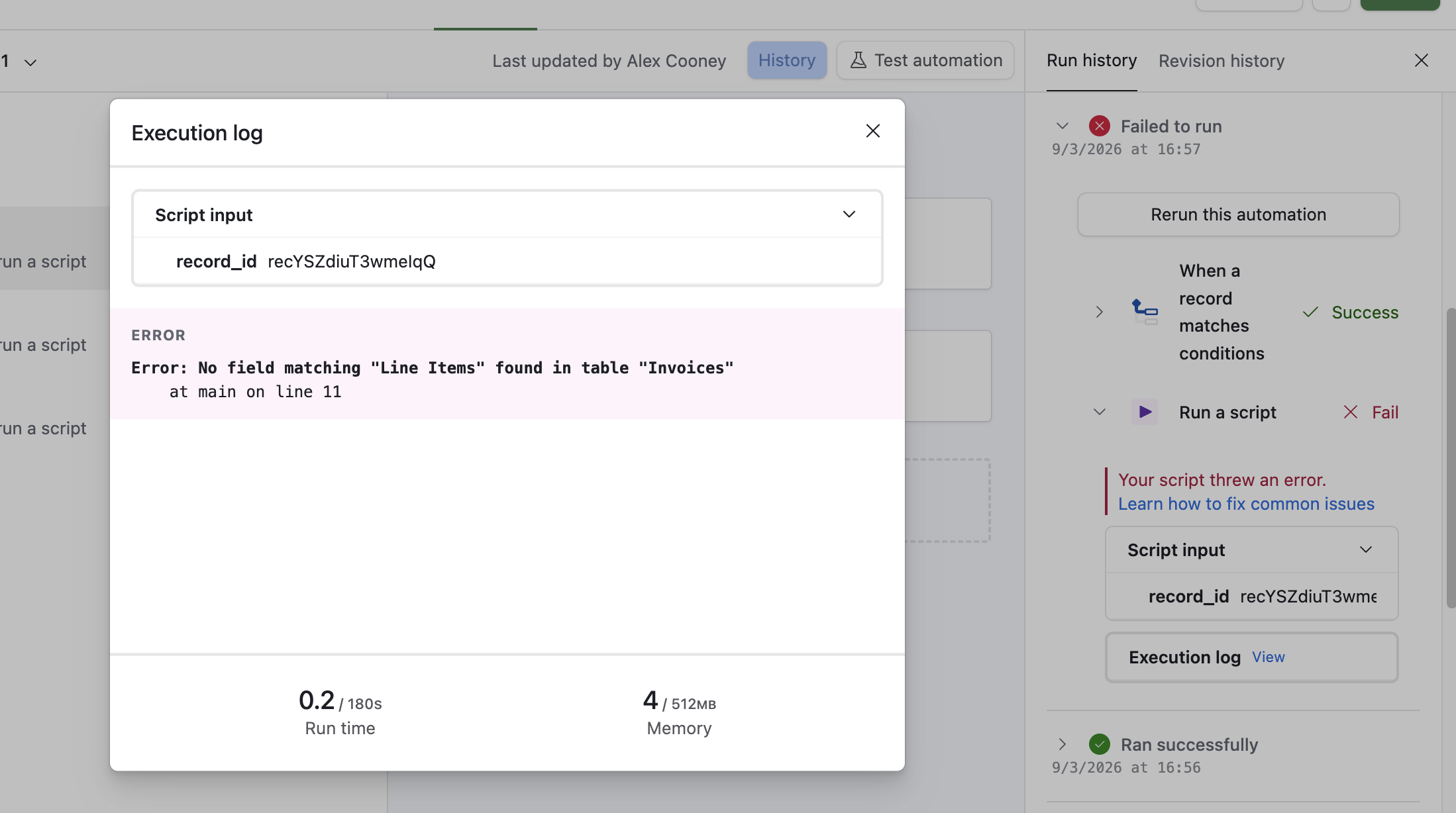
The error message should give you some indication of what went wrong. If the issue isn't obvious, please contact our support team for assistance.