Quickstart (Zapier) - Generating a PDF document in a Zap
Here's how to generate PDF documents in a Zapier zap.
- Register for a DocuPotion account
- Install the DocuPotion Zapier app
- Create a reusable template
- Trigger document generation in your Zapier Zap.
Register for a DocuPotion account
Estimated time: 1 minute
Head to the DocuPotion homepage and click on the 'Register / Sign in' or 'Start Free Trial' button.
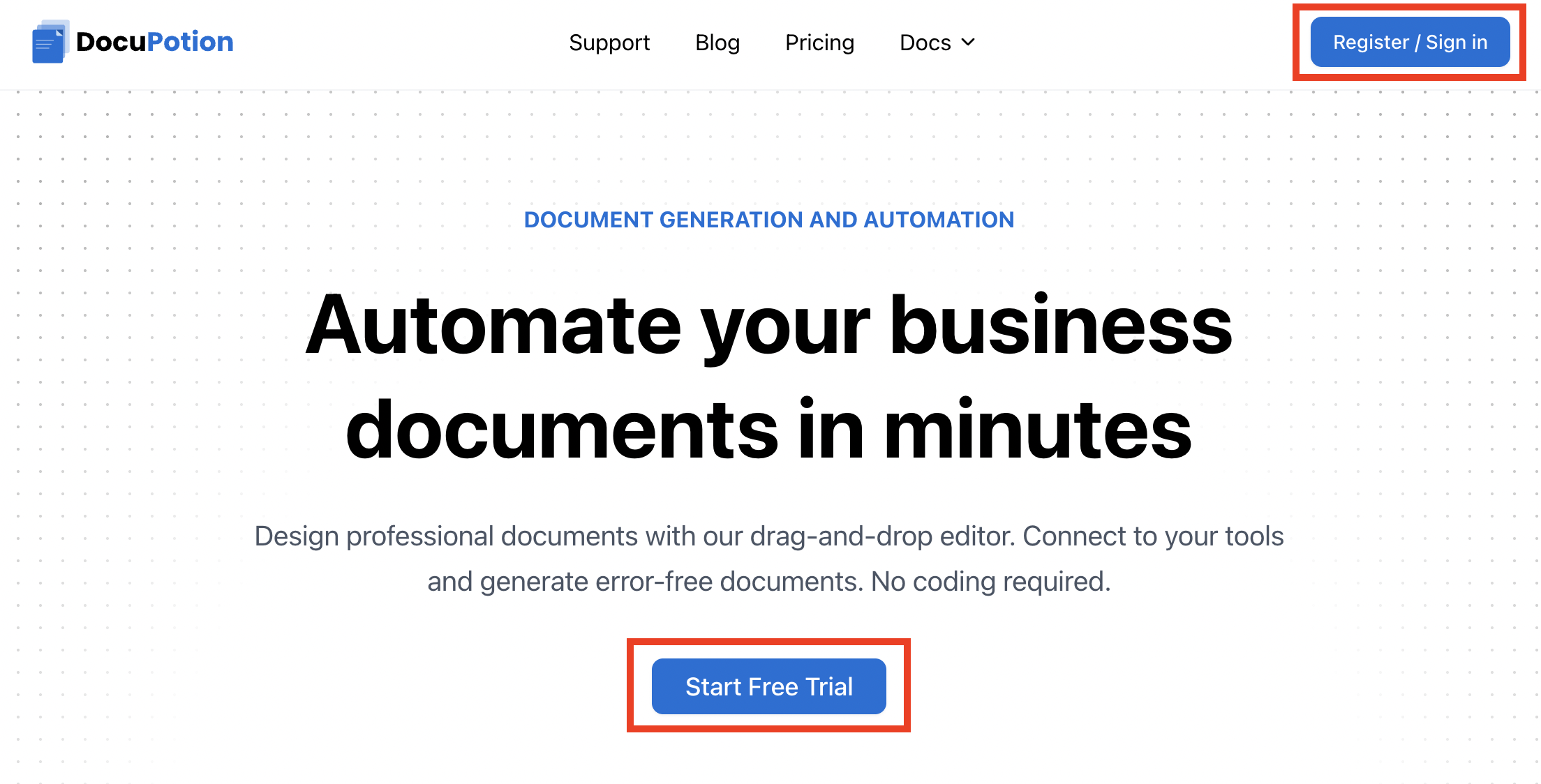
This will bring you to the 'Register' page where you can register for an account. Choose Zapier - the onboarding wizard will route you straight into the document editor where you can create your first template.
Install the DocuPotion Zapier app
Estimated time: 2 minutes
In any Zap, search for the DocuPotion app and add it to your Zap.

Choose the Create Document event. Connect to your DocuPotion account by clicking the Sign in button and then adding your DocuPotion API key to the window that appears. You can get your DocuPotion API Key from the API Integration tab of your DocuPotion dashboard.
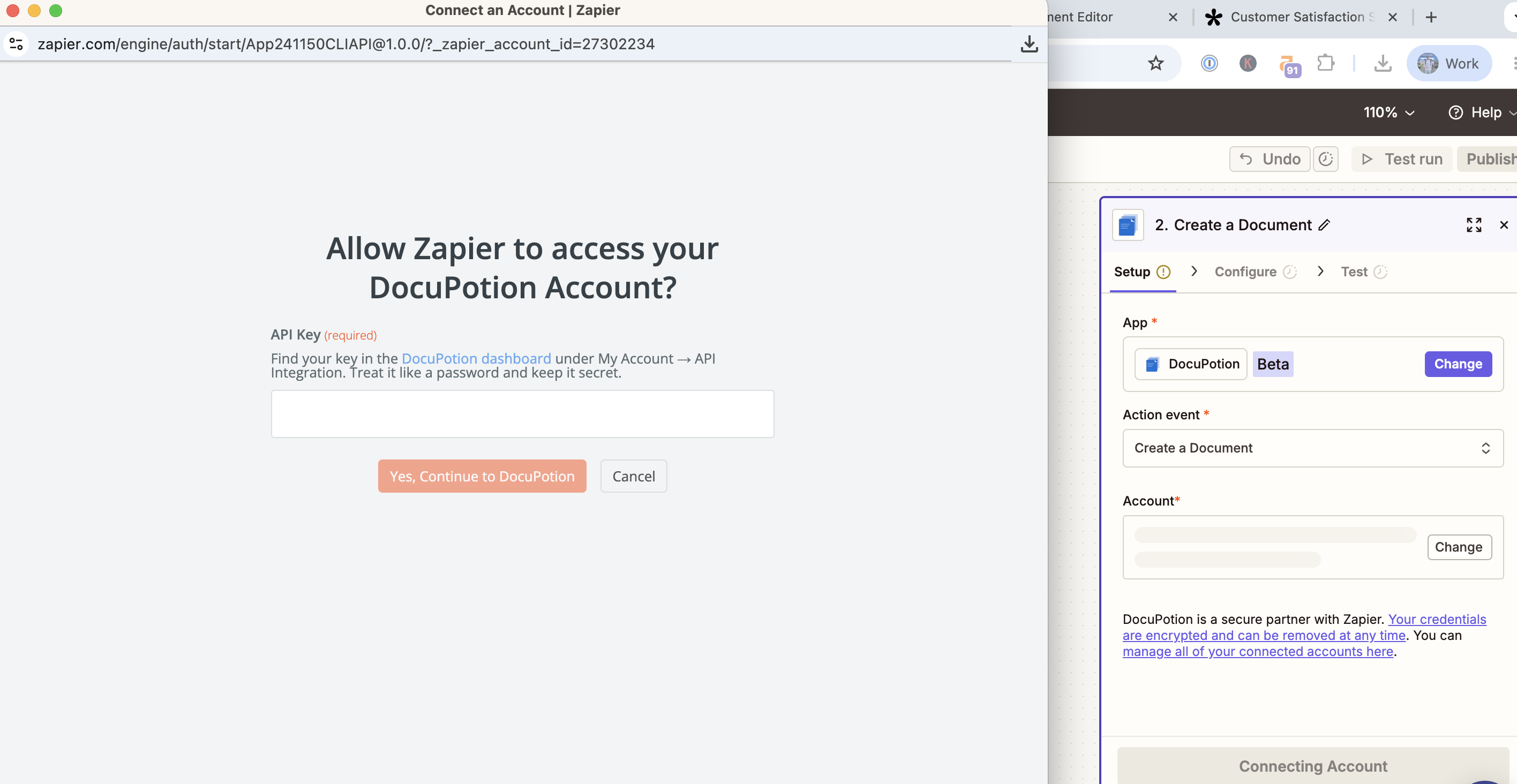
You can the select the DocuPotion account to connect to.
Create a reusable template
Navigate to the Templates section of your DocuPotion dashboard and click on the New Template button. You'll have 3 options for creating a new template:
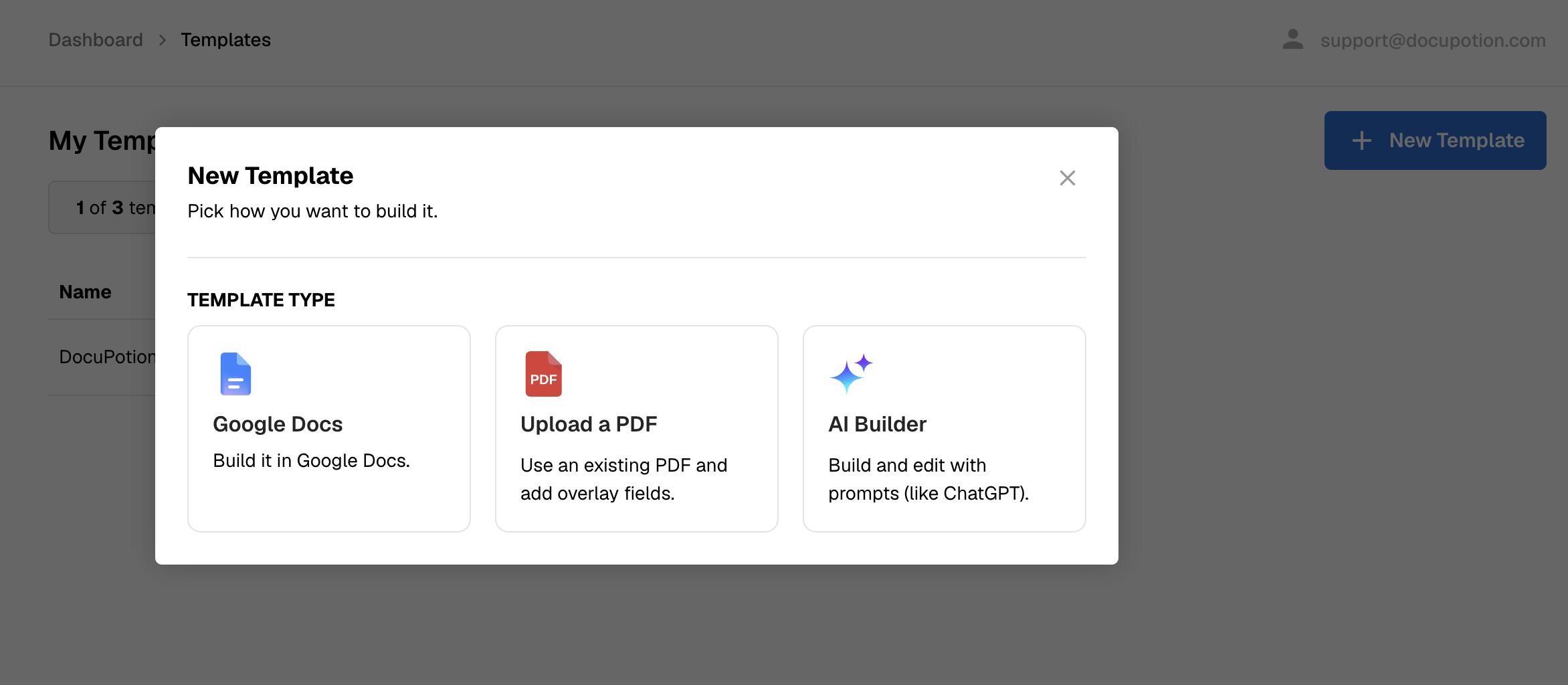
Google Docs: Connect to your Google Drive and pick an existing Doc template or start from scratch. See this doc for full instructions.
Upload a PDF: Choose this option if you have an existing PDF and you want to add overlay fields that you can merge your data to. Fillable PDFs with form fields also accepted. See this doc for full instructions.
AI Builder: Create a template based on a prompt or choose one of our HTML library templates. You can also attach existing PDF or HTML files for reference. See this doc for full instructions.
Once you've picked an option, you'll be brought to the DocuPotion template editor.
Trigger document generation in your Zapier Zap
Estimated time: 5 minutes
Back in Zapier, configure the Create a document action in your Zap:
Fields in the Create Document action
- Template - Choose one of your DocuPotion templates from the dropdown
- Output - Pick one: File (recommended - hands Zapier a binary file you can email, upload, etc.), URL (returns a signed link), or base64 (returns the raw encoded string)
- File Name - The filename for the generated PDF document, e.g.
Customer Feedback -{{customer_name}}.pdf. - Template Data - Add your template data as a JSON object. This is the data that will replace the
{{merge fields}}in your template (see below for further details)

Mapping your template data
The easiest way to map your Zapier data to {{merge_fields}} in the document template is to copy and paste sample data from the Data tab in your DocuPotion editor:
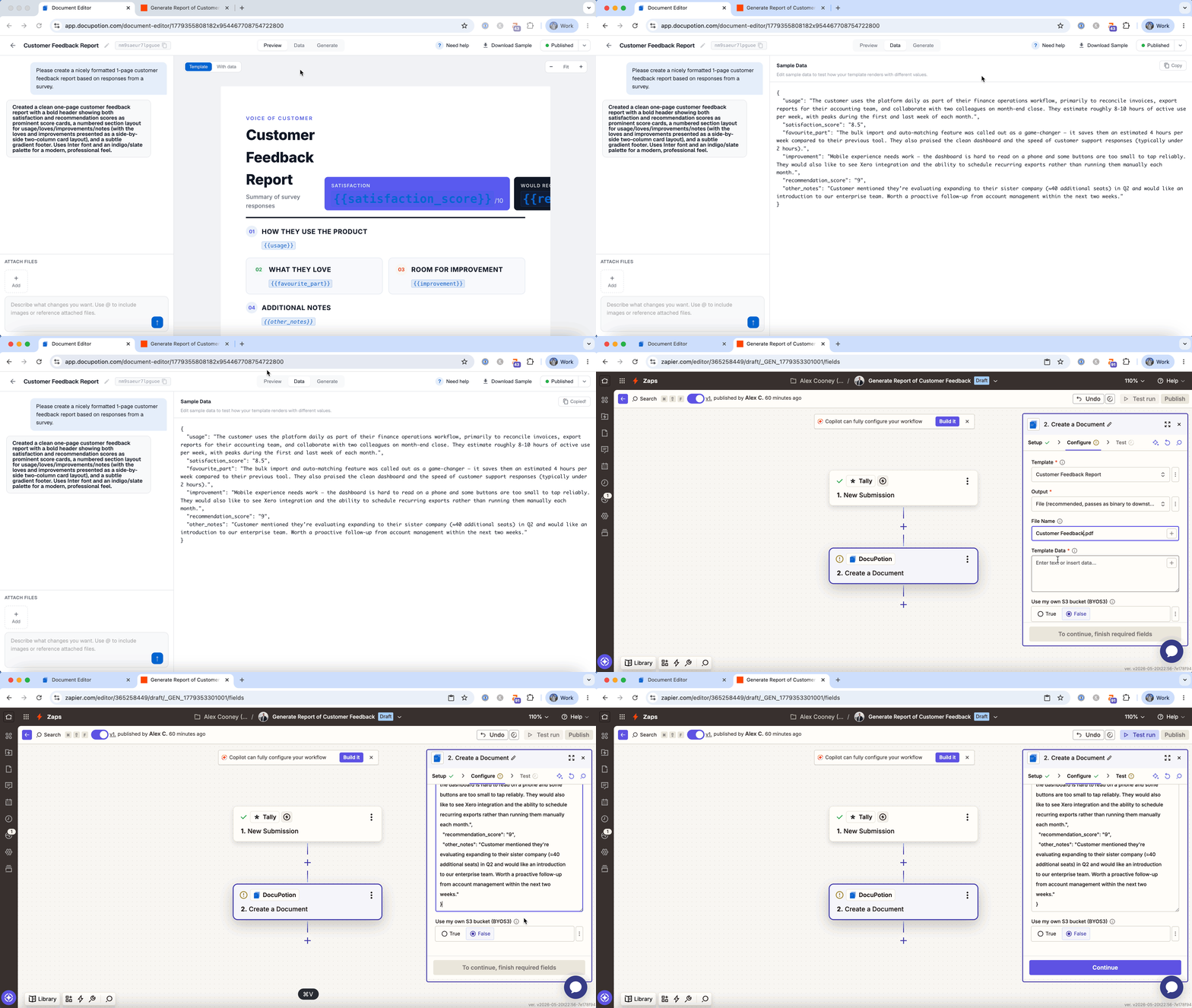
You can then replace the static values with data from a prior step in your Zap (in the example below we're using responses from a Tally form submission):
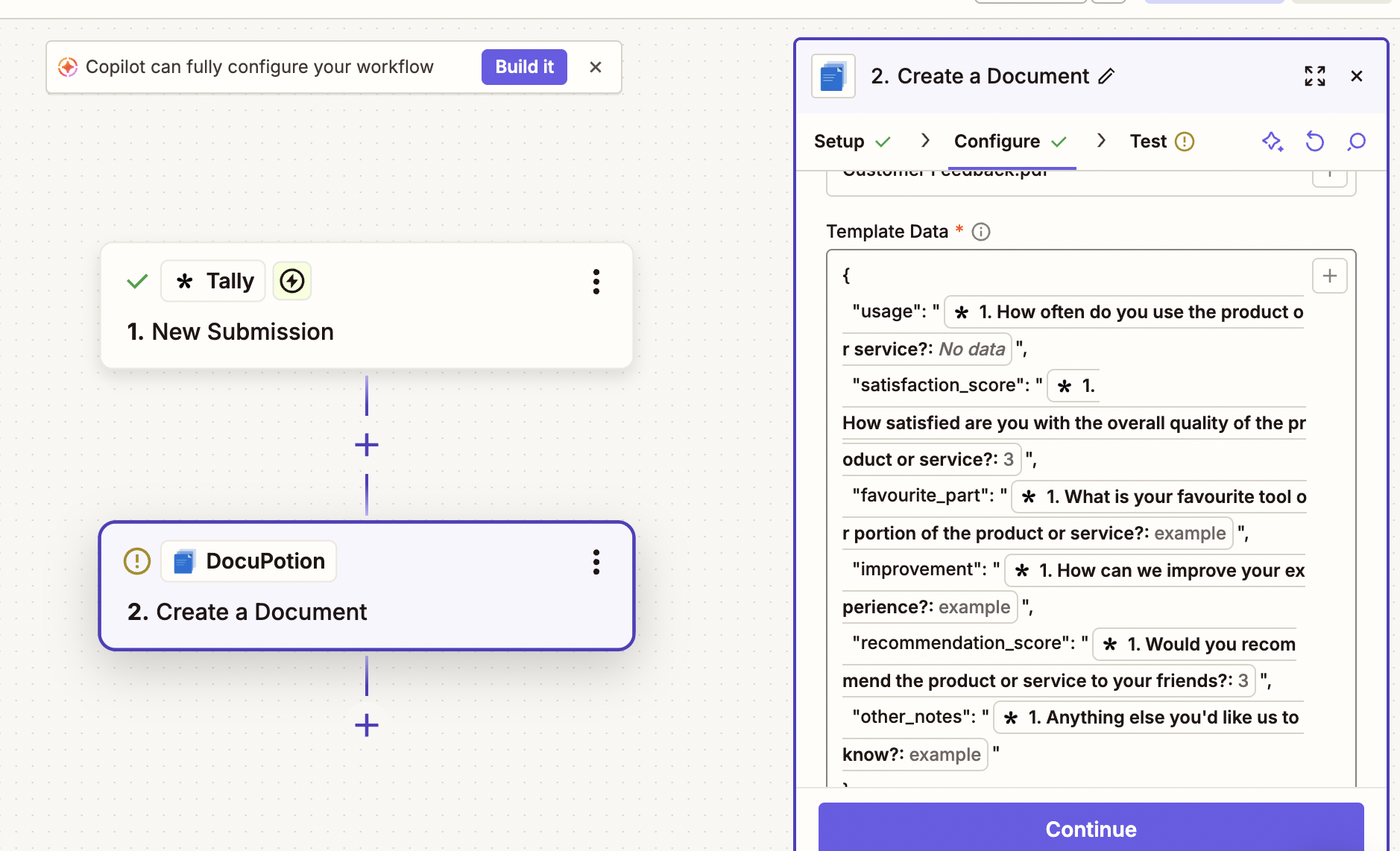
Click continue and test your action. It should now return a generated PDF document in whichever output format you picked. You can send this PDF via an email attachment, upload it to your Drive upload, or perform any other Zapier action that involves PDFs.