Create PDFs with data from linked records
DocuPotion allows you to create PDFs with data from linked records in Airtable. You can use data from:
If you're just starting out generating PDFs from Airtable data, we recommend you check out our Airtable quickstart guide.
Single linked records
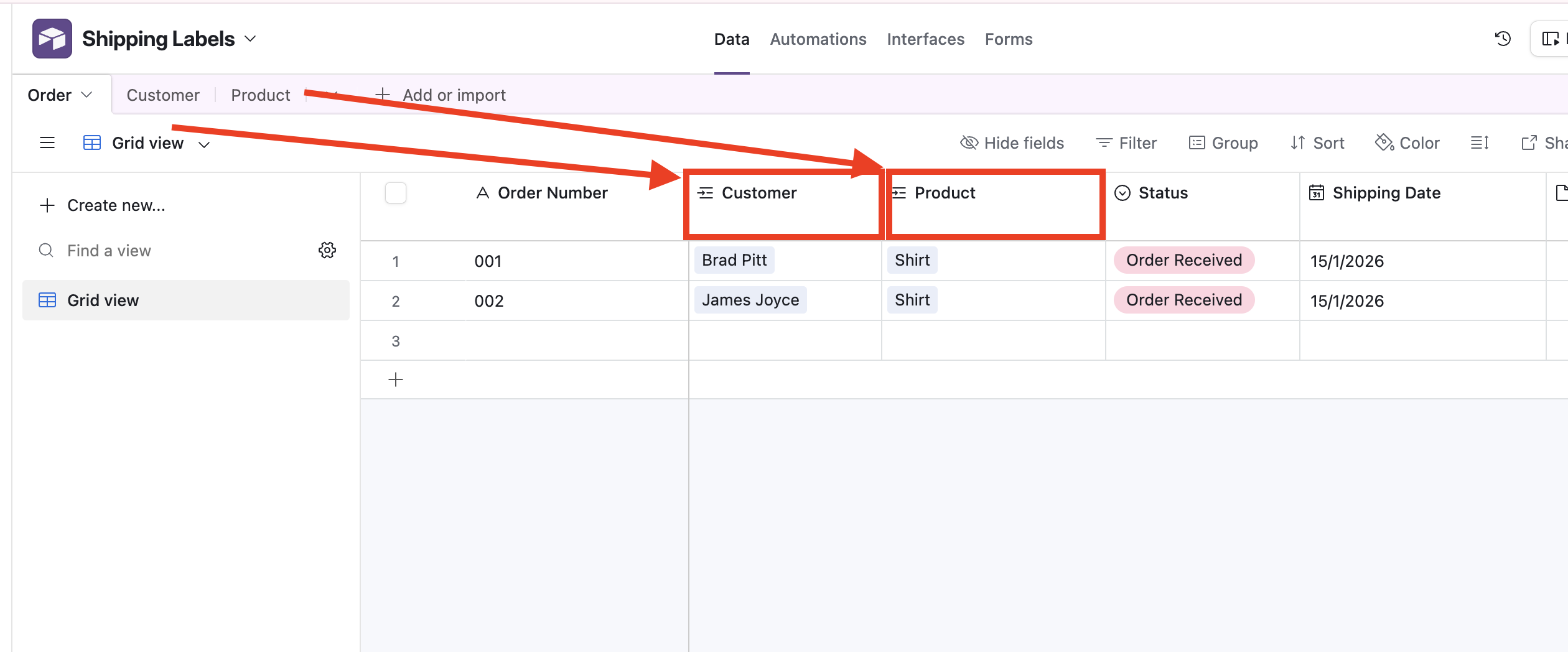
In the 'Order' table in the image below, the 'Customer' and 'Product' columns are linked to other tables in the base:
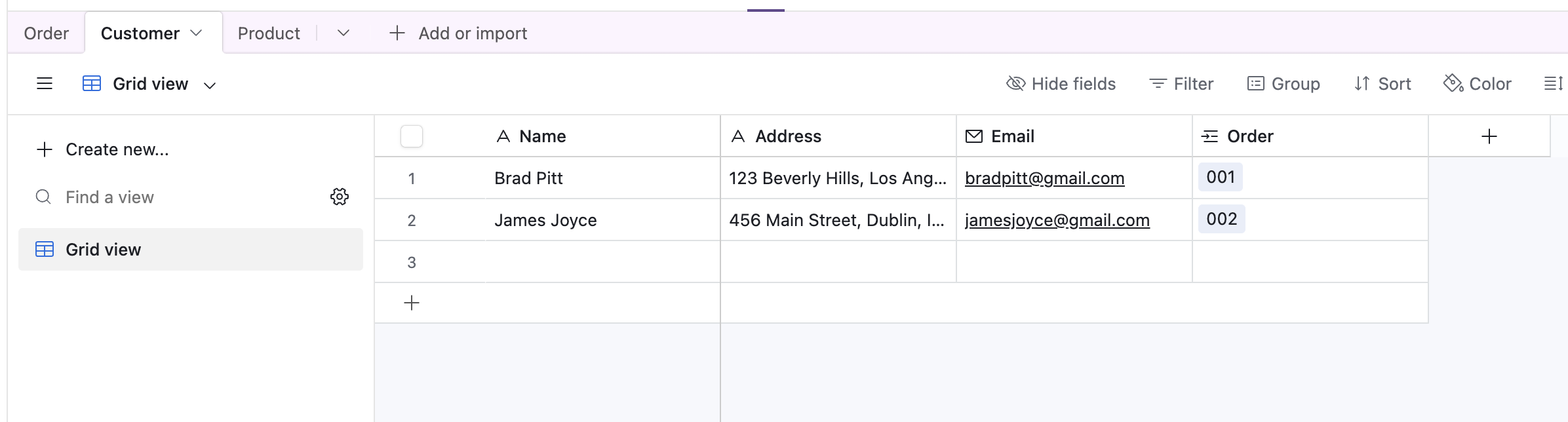
The 'Customer' table contains data on customer's name and address:
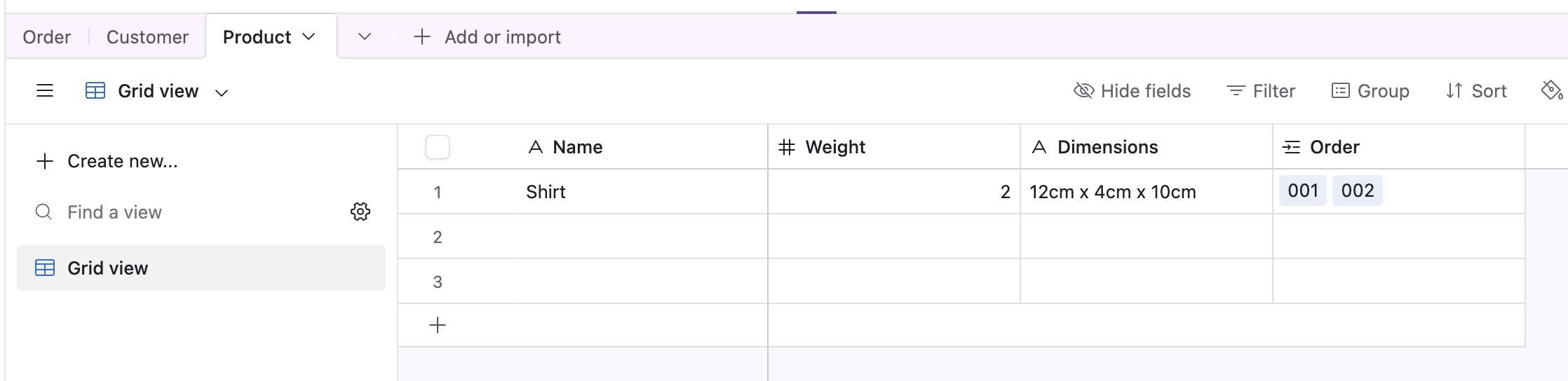
While the 'Product' table contains data on the product's name, weight and dimensions.
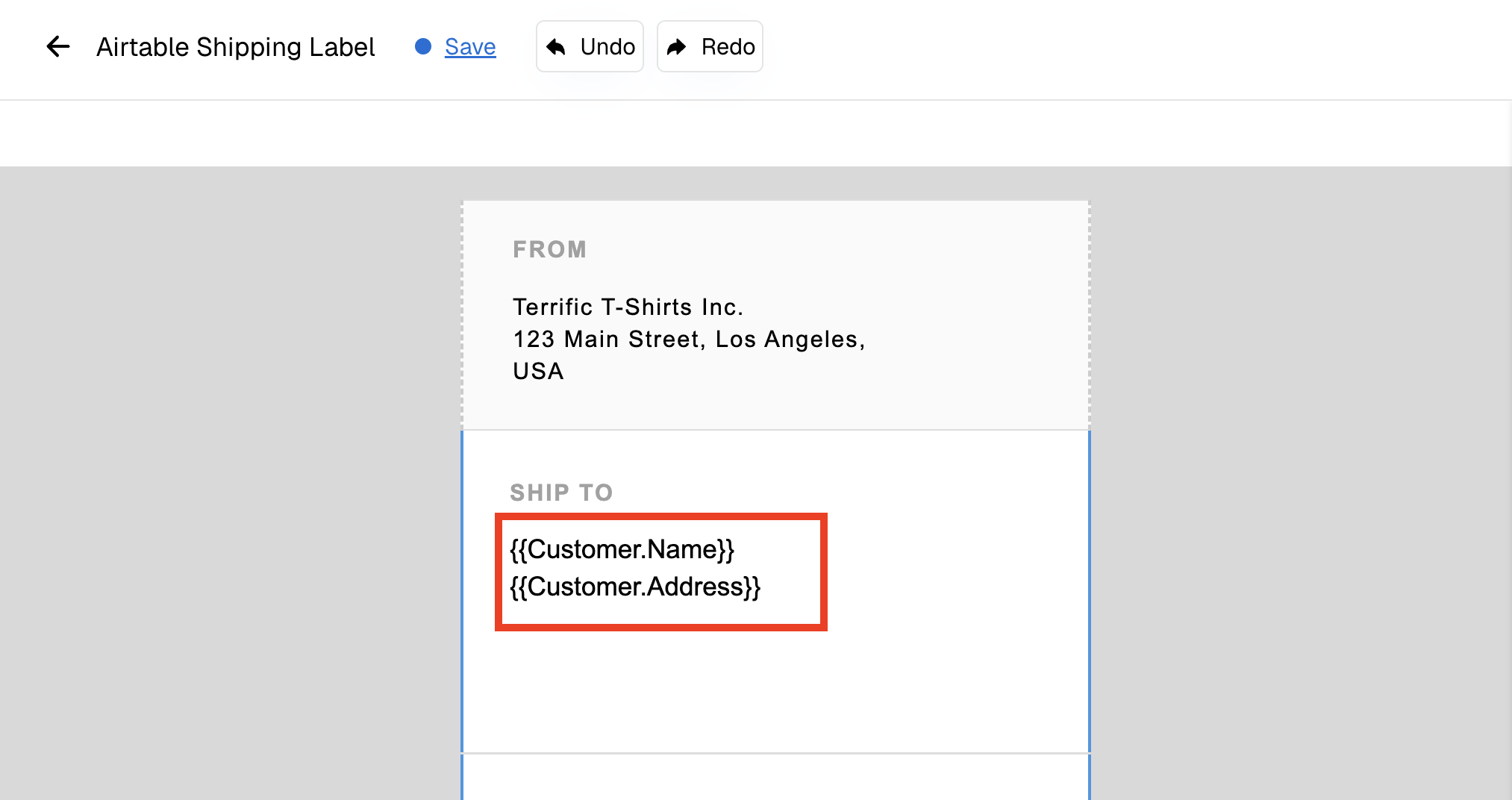
If we want to include data from a single linked record in our PDF, we can use the expression:
Field.linkedField
So if we want to include the Customer's name and address in the output PDF, we can use Customer.Name and Customer.Address when adding merge fields to our template
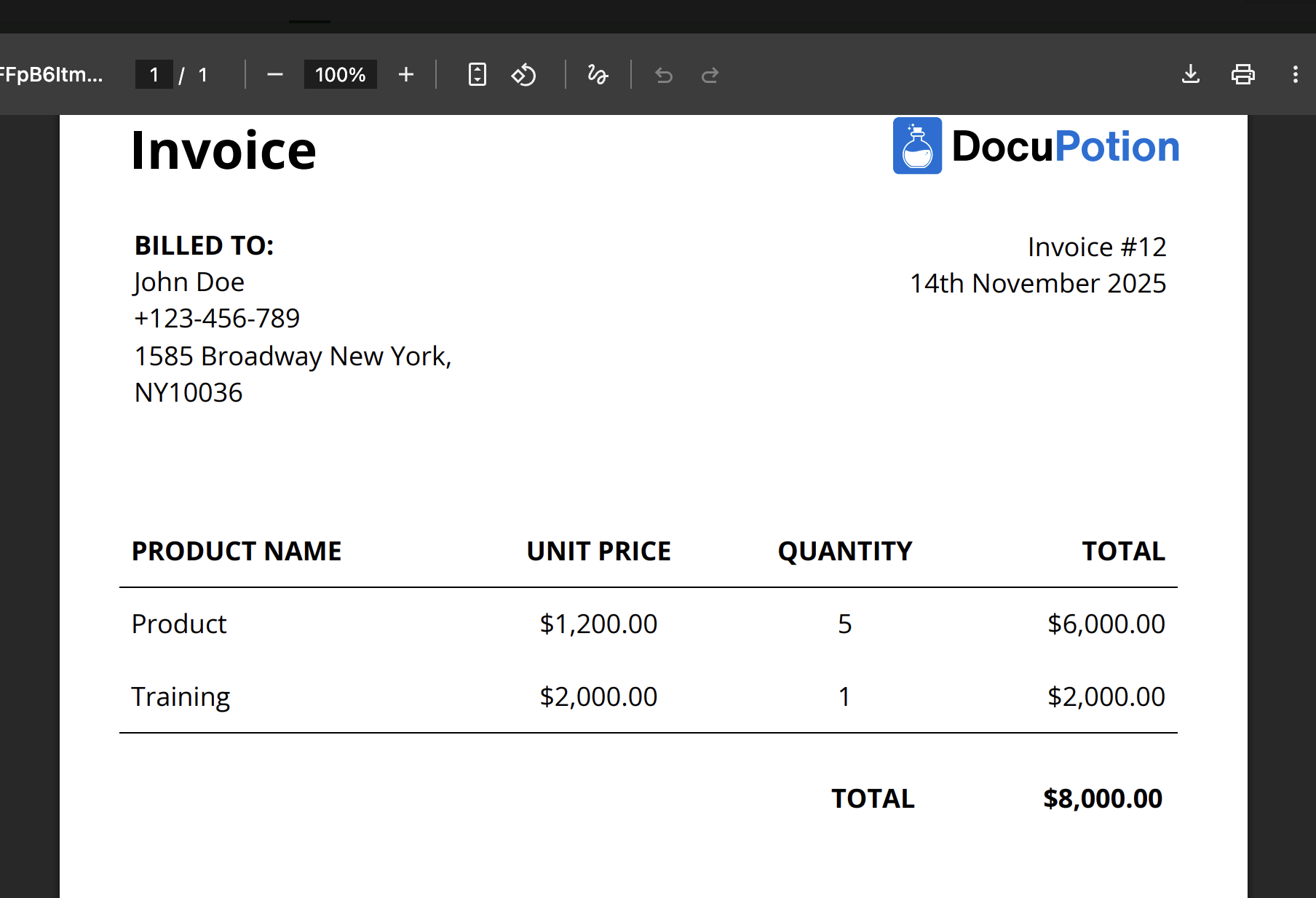
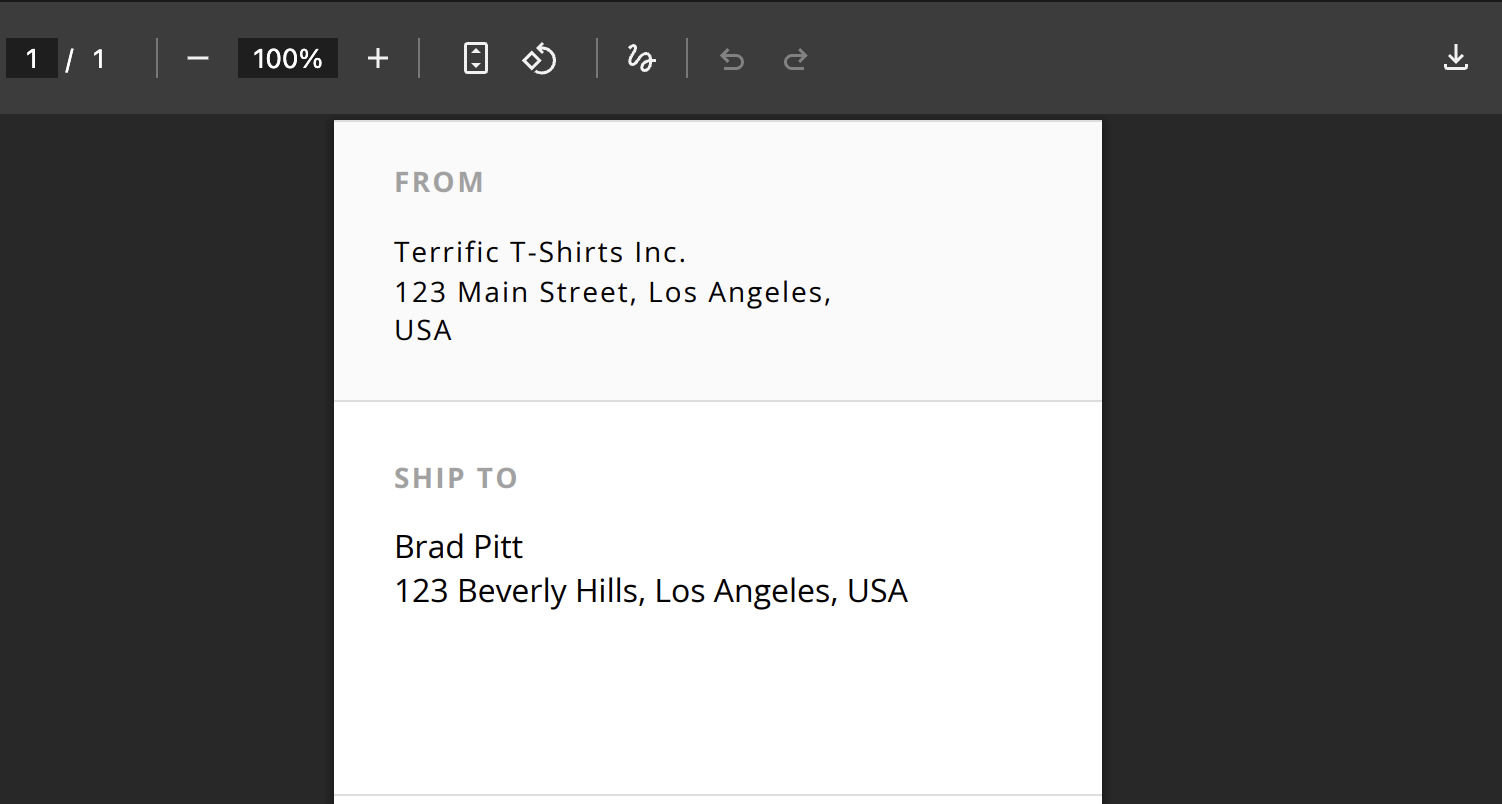
The output PDF will contain data from the linked records:
Multiple linked records
The Dynamic Table component allows you to use data from multiple linked records in your PDF.
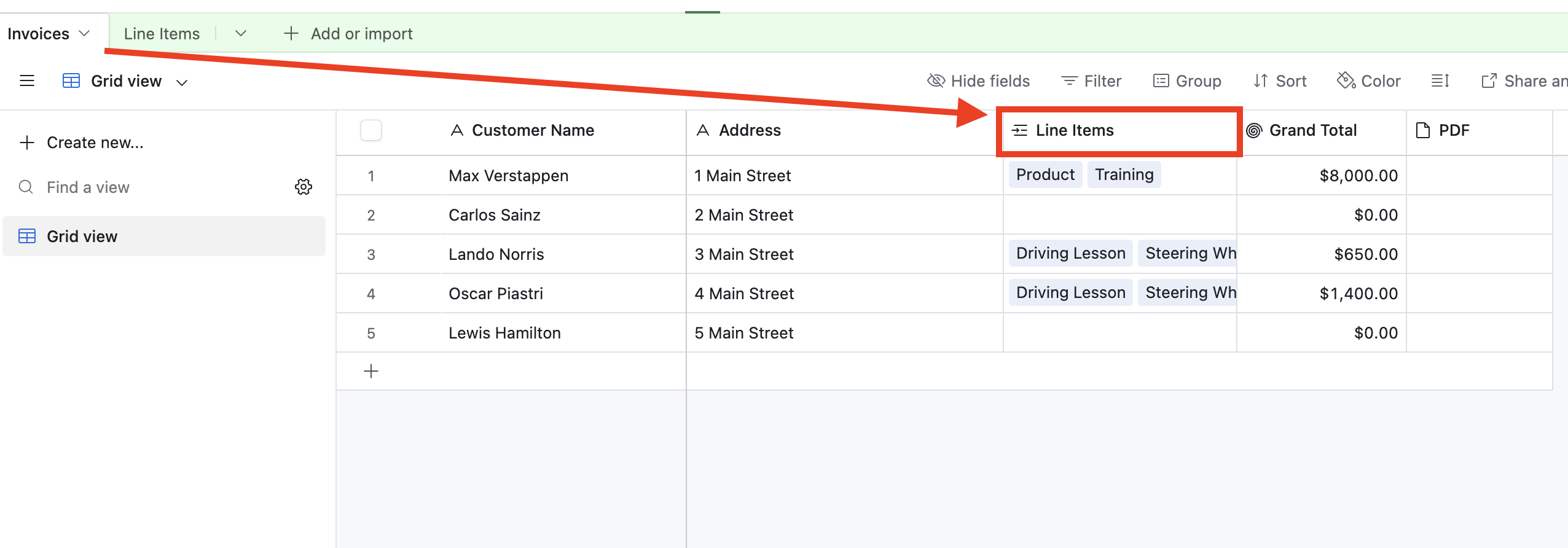
In the 'Invoices' table below, the 'Line Items' column links to the 'Line Items' table:
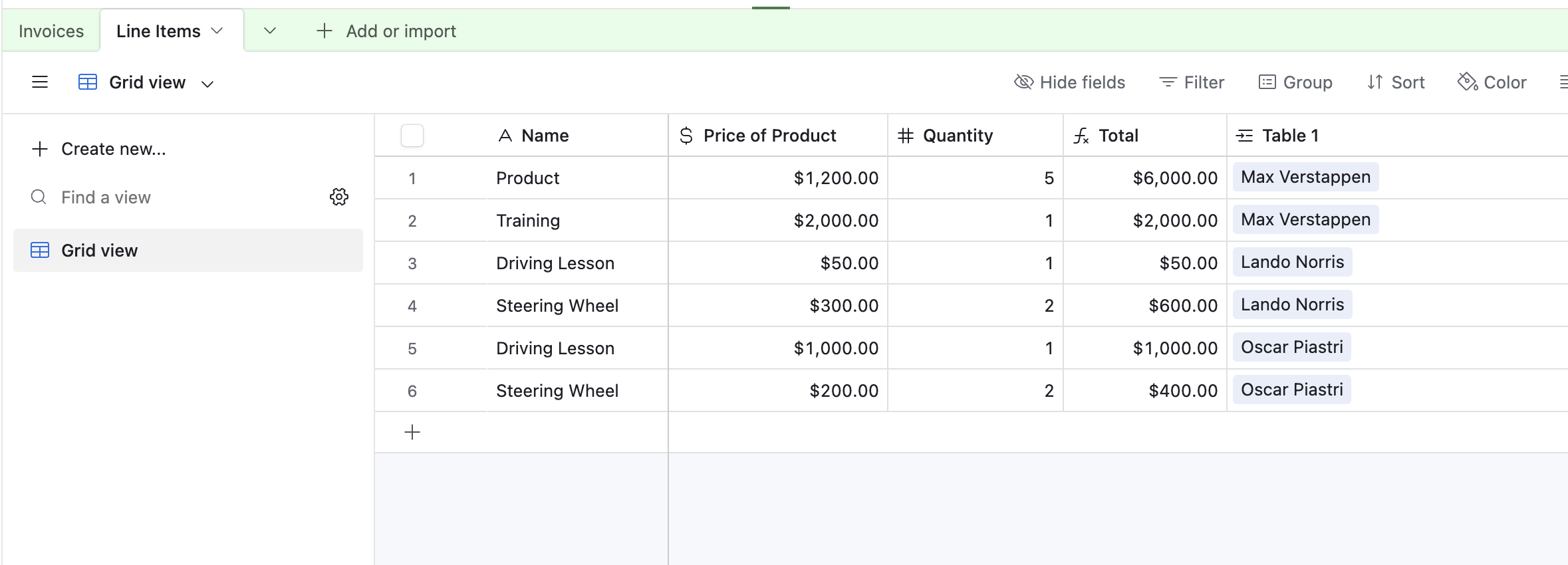
The 'Line Items' table contains data on each of the items included in the invoice:
If we want to include data from multiple linked records in our dynamic table component, we must first set the 'Data Type' to be equal to the name of the linked records table:
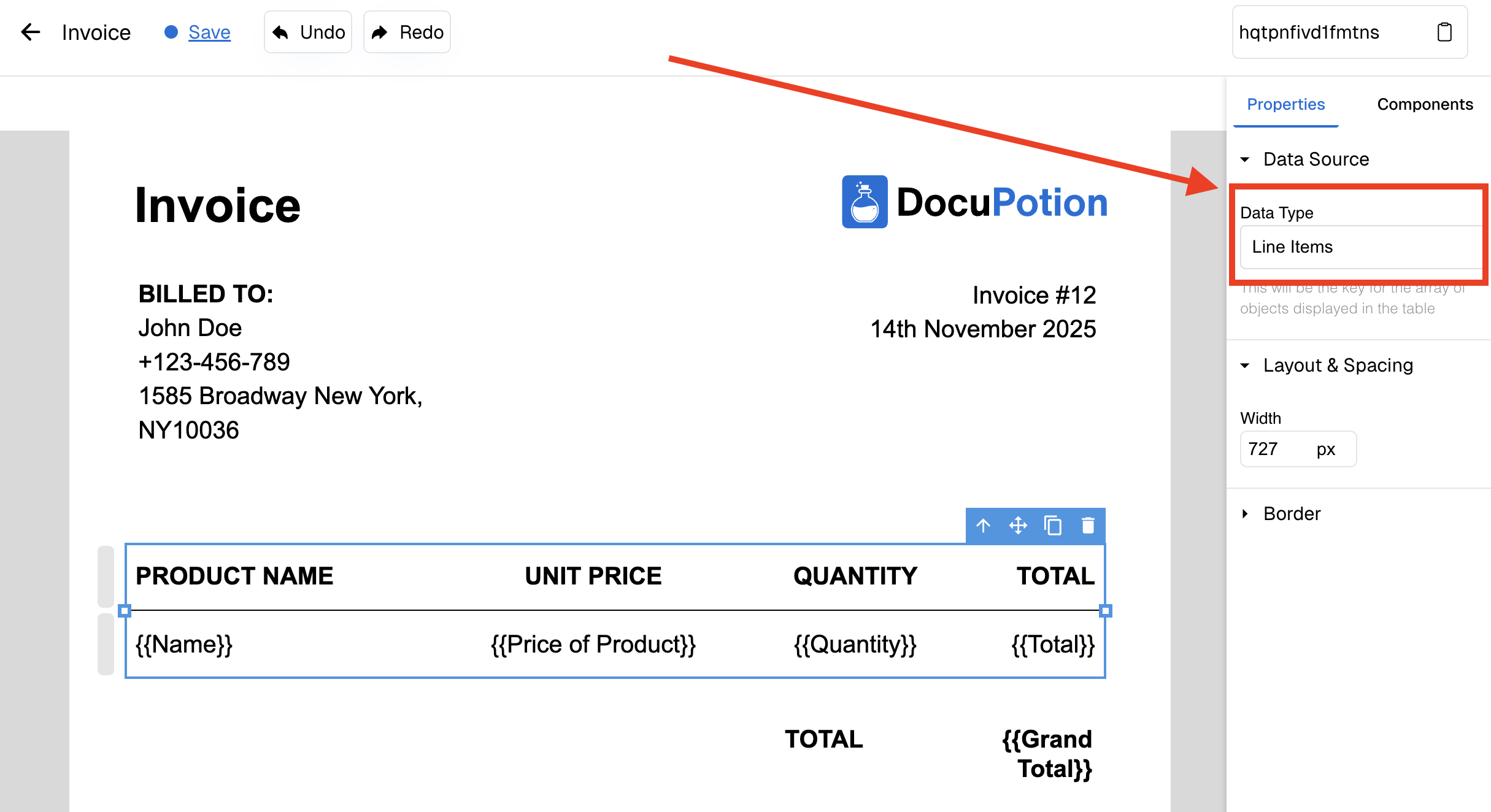
Note: The column name of the linked records table AND the actual name of the linked table must be the same.
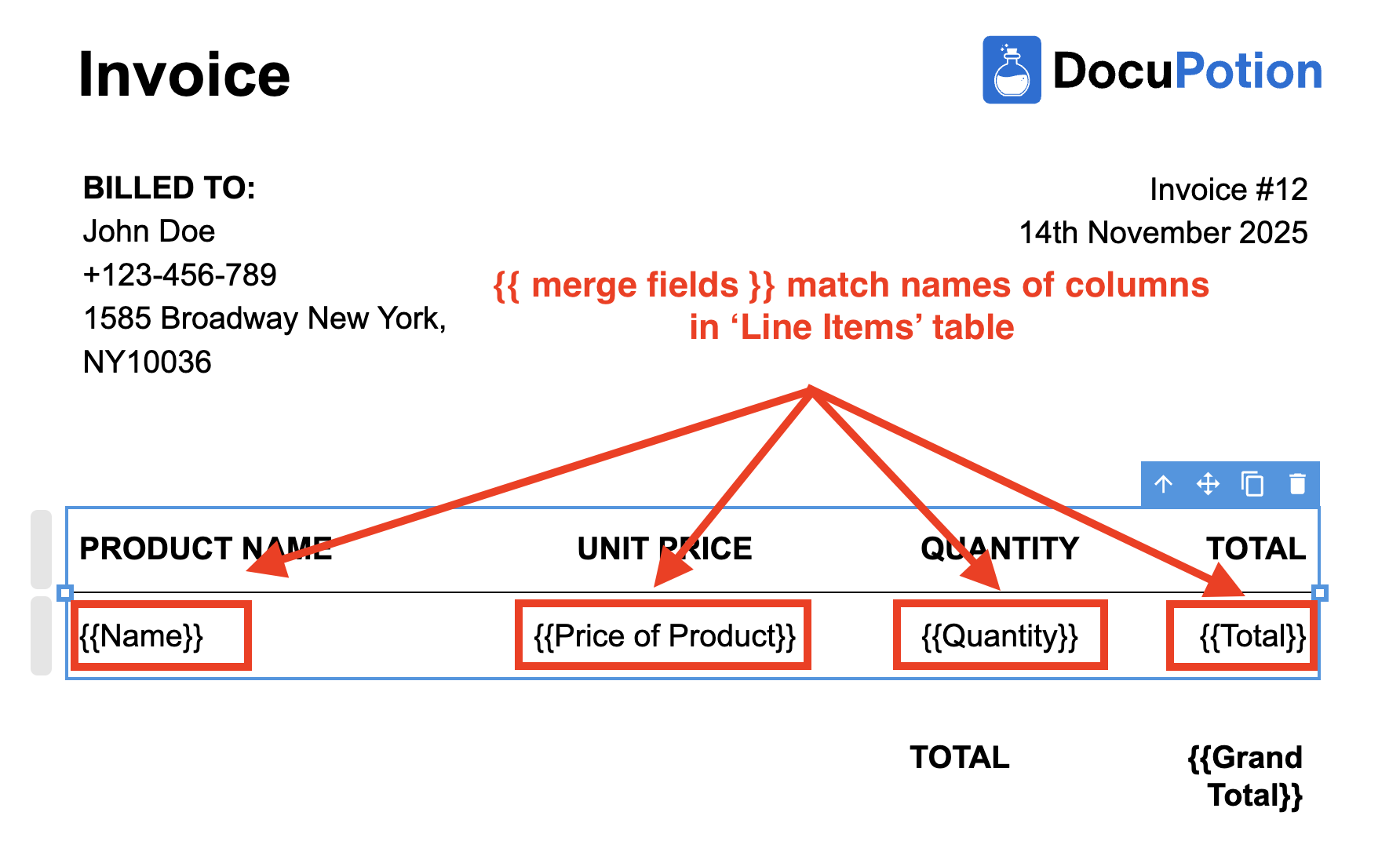
We must then match the name of the merge fields in the dynamic table to the column names in the linked table:
The output PDF will contain data from the multiple linked records: