Save documents to your S3 Bucket
This feature is only available to users on a Core plan or higher. See full details on our plans here.
Overview
By default, when you use output: "url" with the DocuPotion REST API, your files are uploaded to DocuPotion-managed storage and returned as a presigned URL. With Bring Your Own Storage (BYOS), you can route those files to your own S3 bucket instead — giving you full control over storage, retention, and access.
Steps
2. Connect your bucket in the DocuPotion dashboard
1. Set Up Your AWS Bucket
Complete these steps in the AWS Console before connecting to DocuPotion.
Create an S3 Bucket
1. Go to S3 in the AWS Console and click Create bucket
2. Choose a bucket name and region (any standard AWS region is supported)
3. Leave all other settings as default (private access)
4. Click Create bucket
Add CORS Configuration
If you need to download files directly in the browser via presigned URLs (e.g. opening a PDF in a new tab), you must configure CORS on your bucket.
1. Open your bucket and go to the Permissions tab
2. Scroll to Cross-origin resource sharing (CORS) and click Edit
3. Paste the following configuration:
[
  {
    "AllowedHeaders": ["*"],
    "AllowedMethods": ["GET"],
    "AllowedOrigins": ["*"],
    "ExposeHeaders": [],
    "MaxAgeSeconds": 3600
  }
]
4. Click Save changes
Security tip: For tighter security, replace
"*"in AllowedOriginswith your application's domain (e.g."https://yourapp.com"). Your files are still protected by presigned URL signatures regardless.
Create an IAM User
1. Go to IAM in the AWS Console
2. Click Users then Create user
3. Name it something like
docupotion-s3-user
4. Click Next, then Attach policies directly
5. Click Create policy and use the JSON editor:
{
  "Version": "2012-10-17",
  "Statement": [
    {
      "Effect": "Allow",
      "Action": [
        "s3:PutObject",
        "s3:GetObject"
      ],
      "Resource": "arn:aws:s3:::YOUR_BUCKET_NAME/*"
    }
  ]
}
Replace
YOUR_BUCKET_NAME with your actual bucket name.
6. Name the policy (e.g.
docupotion-s3-access) and create it
7. Attach the policy to the user and finish creating the user
IMPORTANT: Only
s3:PutObjectand s3:GetObject permissions are required. Do not grant broader permissions than necessary.
Generate Access Keys
1. Open your new IAM user and go to the Security credentials tab
2. Click Create access key
3. Select Third-party service and confirm
4. Copy both the Access Key ID and Secret Access Key — you'll need these in the next step
Connect Your Bucket in the DocuPotion dashboard
1. Go to your DocuPotion dashboard
2. Navigate to the API Integration tab
3. Enter your credentials in the S3 bucket section
4. Click Connect
DocuPotion will perform a test upload to verify your credentials. If successful, you'll see a connected status. If it fails, you'll see an error message.
Generate Files to Your Bucket
Once your bucket is connected, add the S3 parameters to your
POST /v1/create request.
Sample Request
{
  "templateId": "your_template_id",
  "output": "url",
  "format": "pdf",
  "expiration": 60,
  "s3_bucket": true,
  "s3_key": "invoices/2024/INV-001",
  "data": {
    "name": "John Doe",
    "amount": "$1,000.00"
  }
}
S3 Parameters
These parameters are in addition to the standard parameters documented in the API reference
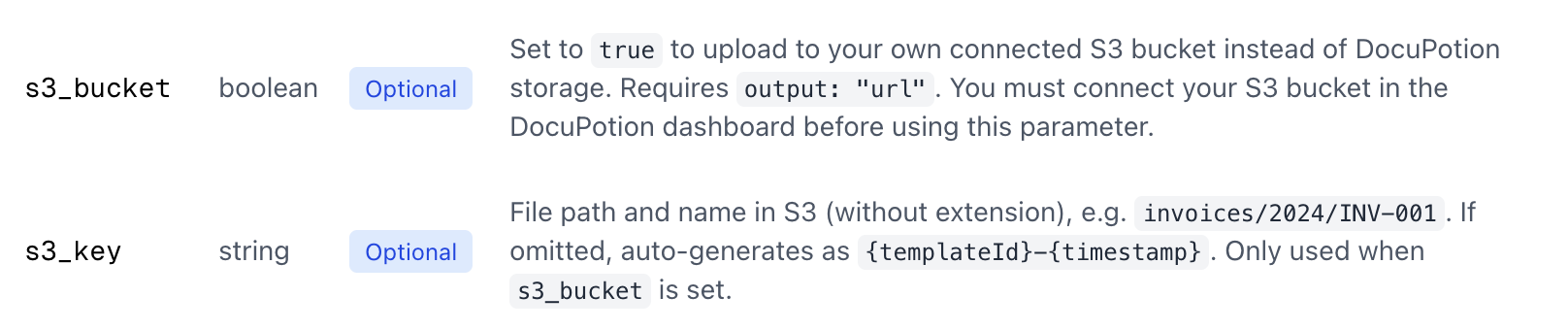
The standard `expiration` parameter controls how long the presigned URL is valid (in minutes, between 1 and 10,080).

See the API docs for all available parameters.
Response
{
  "success": true,
  "url": "https://your-bucket.s3.us-east-1.amazonaws.com/invoices/2024/INV-001.pdf?X-Amz-Algorithm=AWS4-HMAC-SHA256&...",
  "expiresIn": 60,
  "format": "pdf"
}
The `url` is a presigned URL that grants temporary access to download the file. After the expiration time, the URL will no longer work — but the file remains in your bucket.
Disconnecting your bucket
To stop using S3 storage:
1. Go to the API Integration tab in your DocuPotion dashboard
2. Click Disconnect Bucket on your S3 connection
3. Your stored credentials will be permanently deleted from DocuPotion
After disconnecting, any API call with
s3_bucket: "yes" will return an error. Files will be uploaded to DocuPotion's default storage as before.
Files already in your S3 bucket are not affected — they remain in your bucket under your control.
Further Reading
-
DocuPotion API Reference — Full documentation for the
POST /v1/createendpoint and all available parameters