Save documents to your S3 Bucket - Bubble
This feature is only available to users on a Core plan or higher. See full details on our plans here.
Upload PDF documents directly to your own Amazon S3 bucket instead of using Bubble file storage a.
This guide is designed for Bubble users who are using the Create PDF action that comes with the DocuPotion plugin.
Steps
- Set up your Amazon S3 bucket
- Connect your S3 bucket to DocuPotion
- Upload documents to your S3 bucket
- Downloading documents stored in your bucket
Set up your Amazon S3 bucket
Create bucket
- Go to S3 in your AWS Console and click Create bucket
- Choose a bucket name and region
- Leave all other settings as default (private access)
- Click Create bucket
Add CORS Configuration
[
  {
    "AllowedHeaders": ["*"],
    "AllowedMethods": ["GET"],
    "AllowedOrigins": ["*"],
    "ExposeHeaders": [],
    "MaxAgeSeconds": 3600
  }
]
Create an IAM User
{
  "Version": "2012-10-17",
  "Statement": [
    {
      "Effect": "Allow",
      "Action": [
        "s3:PutObject",
        "s3:GetObject"
      ],
      "Resource": "arn:aws:s3:::YOUR_BUCKET_NAME/*"
    }
  ]
}
Connect Your Bucket
Upload documents to your S3 bucket
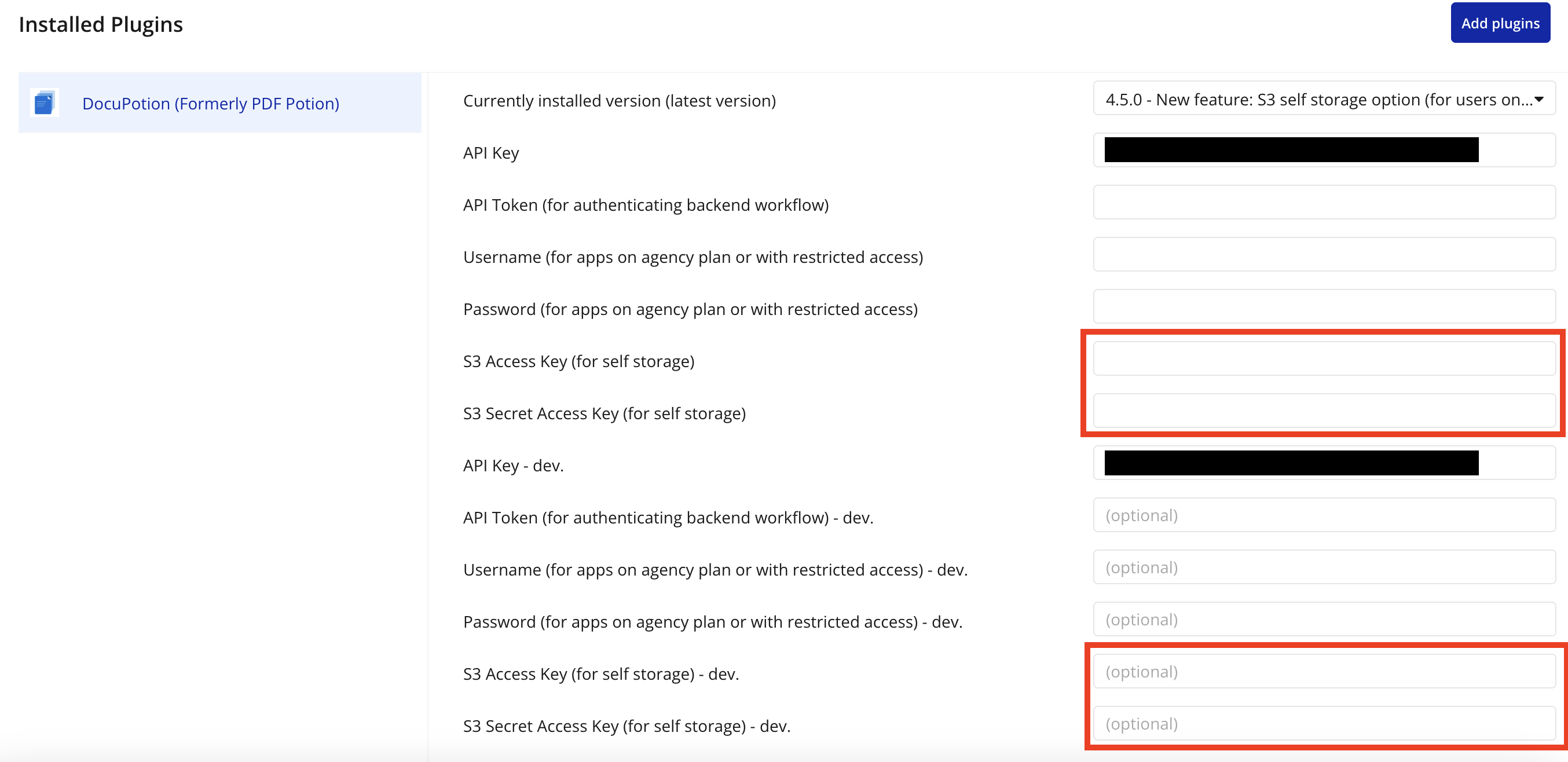
Add your Amazon credentials to the Plugins tab
Add the Access Key and Secret Access Key you generated when setting up your S3 bucket and add them to the relevant inputs in the Plugins tab:
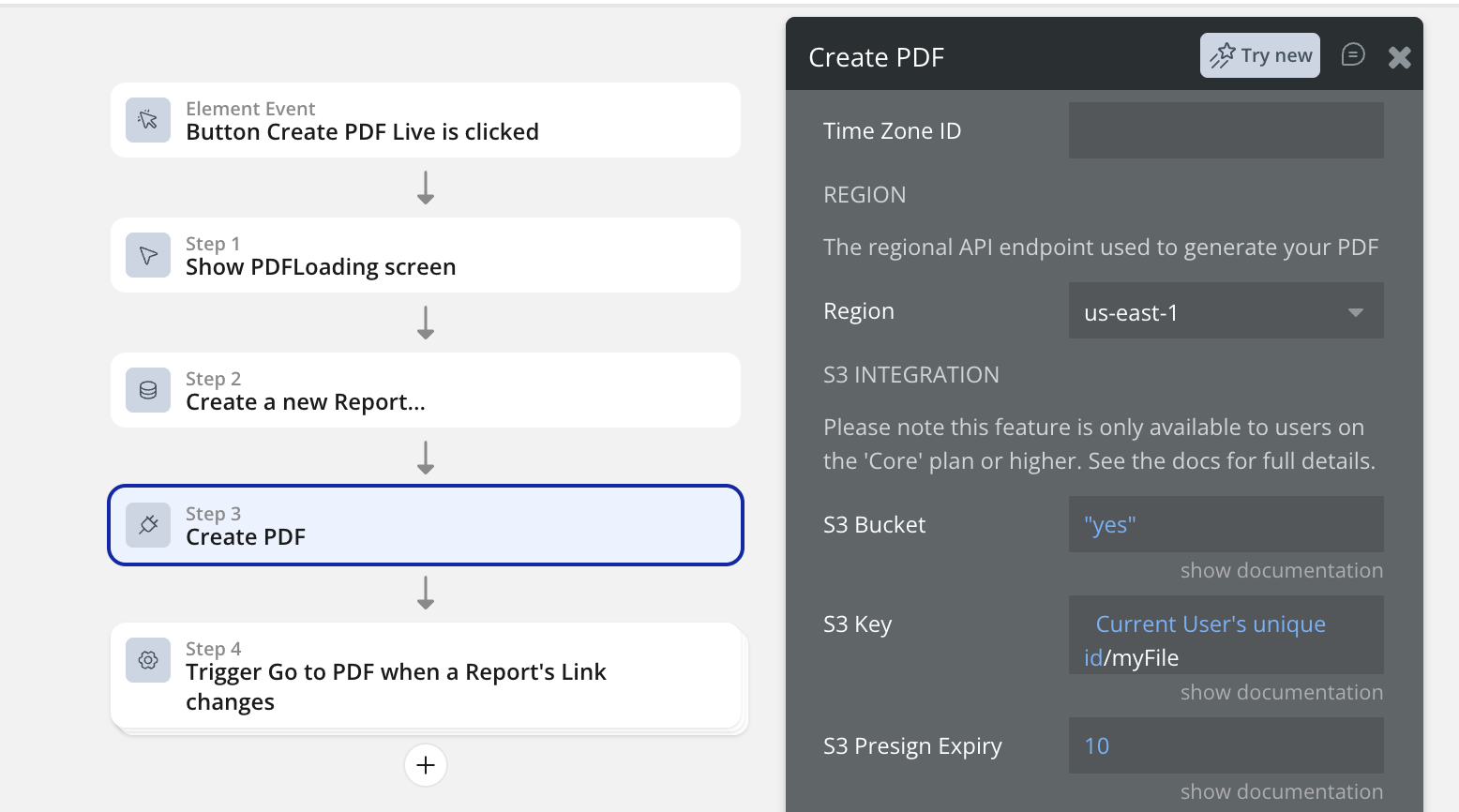
Update the Create PDF action
- Set the S3 Bucket field to 'yes'. This tells DocuPotion to upload the generated document to your S3 bucket instead of Bubble file storage.
- The S3 Key field is the path and file name of the document that will be saved to your S3 bucket. You do not need to add a .pdf extension (DocuPotion does this automatically)
- The S3 Presign Expiry value represents the number of minutes before the presigned URL expires
Downloading documents stored in your bucket
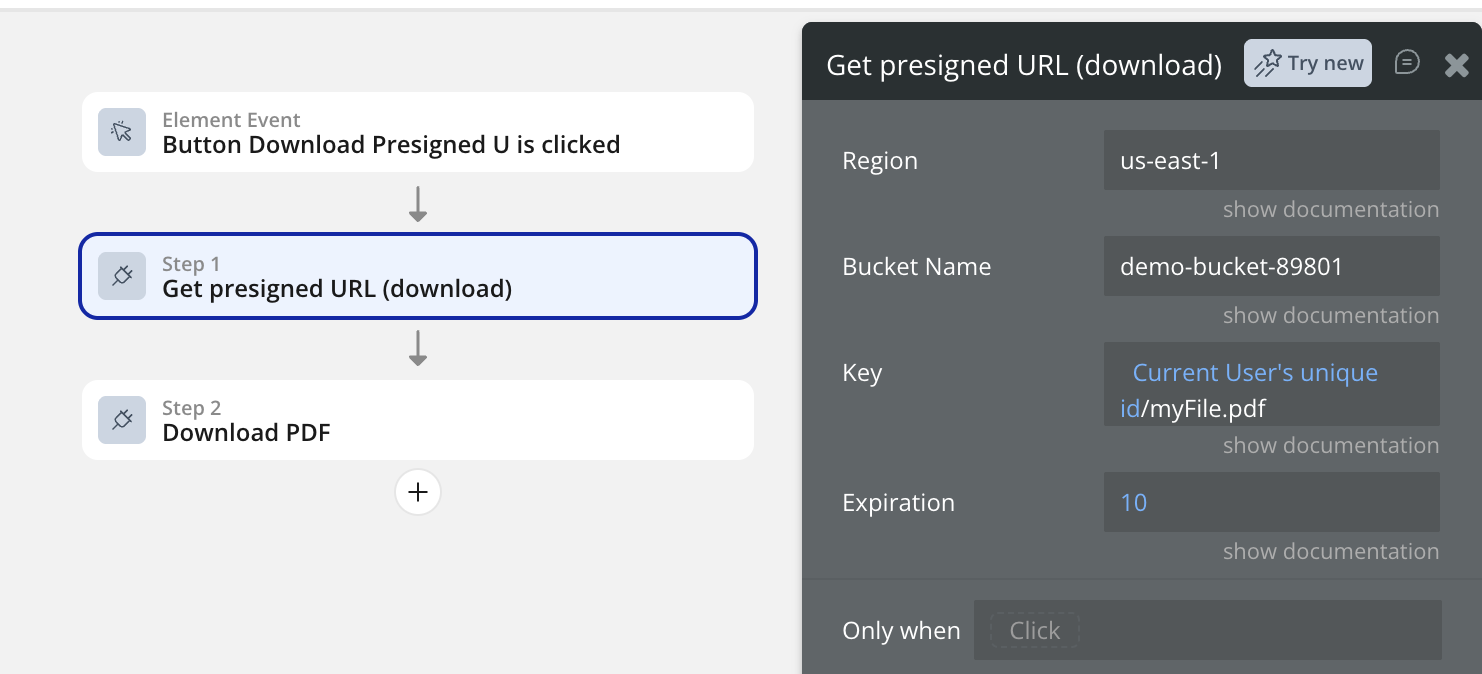
You can use the Download PDF action that comes with the DocuPotion plugin to allow the user to download the PDF document or the Open an external website Bubble action to open the link in a new tab.